No-Code Chatbot: Widgets/Nodes
Last update:
iSlash AI’s no-code chatbot lets you automate responses to customer questions, streamline support, and boost engagement—all without writing code. From guiding users through product selections to handling bookings and FAQs, you can easily design conversational flows that work 24/7 to support your business.
No-code Chatbot User Guide Series:
1. Introduction
2. Build Smart Automation with Campaign Specific Triggers
3. Components/ Widgets 📌
Let's discuss all Chatbot function components/widgets in this article.
Setup Requirement
iSlash AI account, register a free account here.
Basic understanding of No-code Chatbot interface from this user guide entry.
Chatbot function components:
1.Send Message
Send a text message, with support for variables and emojis.
Icon | Field | Description |
|---|---|---|
 | Message content | Enter your message text. |
2.Send Template Message
Send a message using an approved message template.
• Charges may apply for WhatsApp messages.
Icon | Field | Description |
|---|---|---|
 | Message template | Select an approved WhatsApp API template |
Send At | • Send immediately | |
Send to another number (WhatsApp only) | Enable / Disable |
3.Send Media
Send an image, video, or document. Supported formats: JPG, JPEG, PDF
Icon | Field | Description |
|---|---|---|
 | Upload new media | Upload a new file directly from your device |
Media library | Select from previously uploaded files |
4.Send Sticker
Set up under Settings → Stickers.
• Upload a 512 × 512px WebP image first.
Icon | Field | Description |
|---|---|---|
 | Sticker | Select from your uploaded stickers |
5.Multiple Choice Question
Present customers with a set of options. On WhatsApp, these can appear as buttons or a list.
Icon | Field | Description |
|---|---|---|
 | Question | Enter your question text |
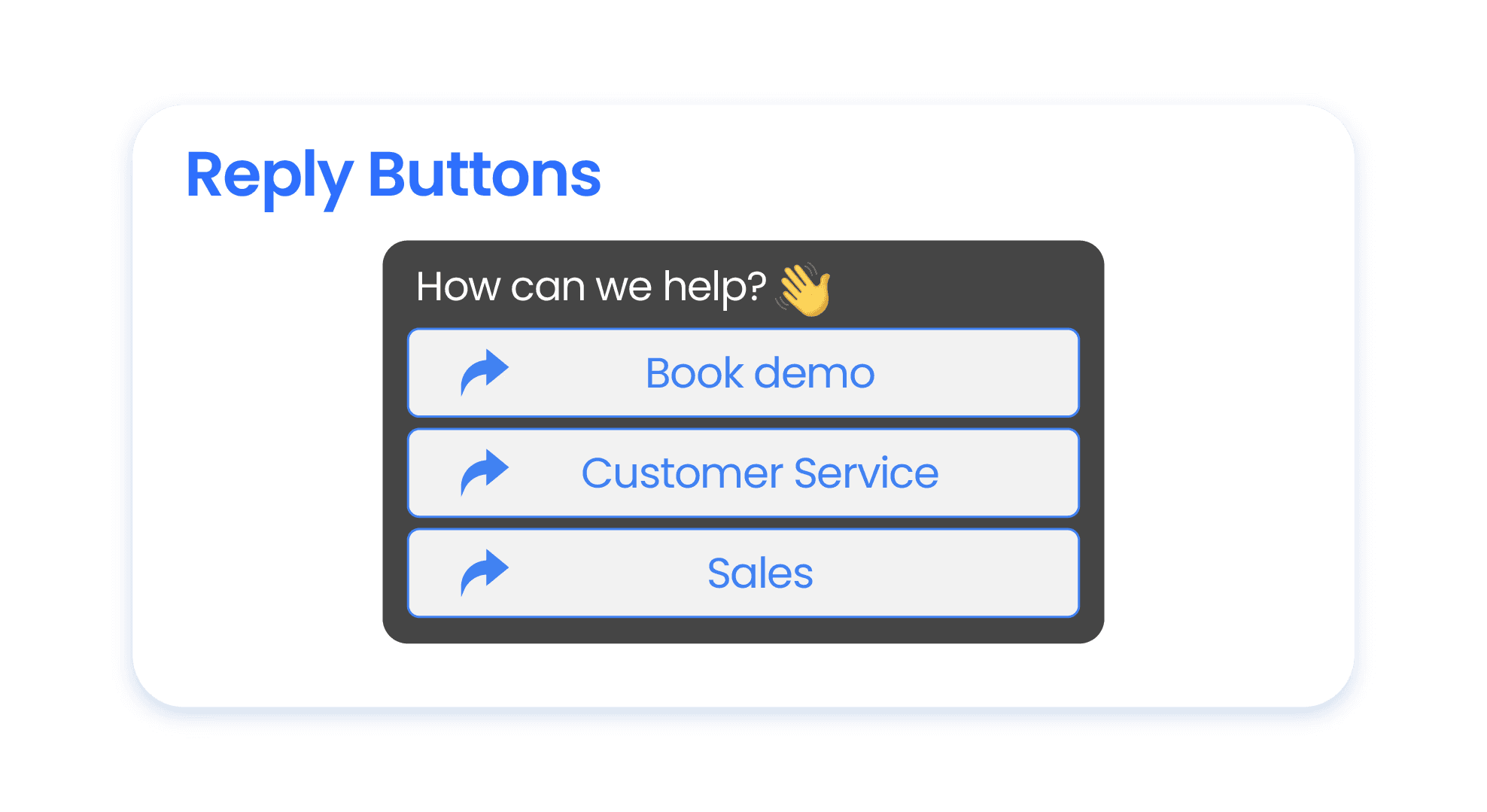 | Use reply buttons / list message | Enable / Disable (WhatsApp only) |
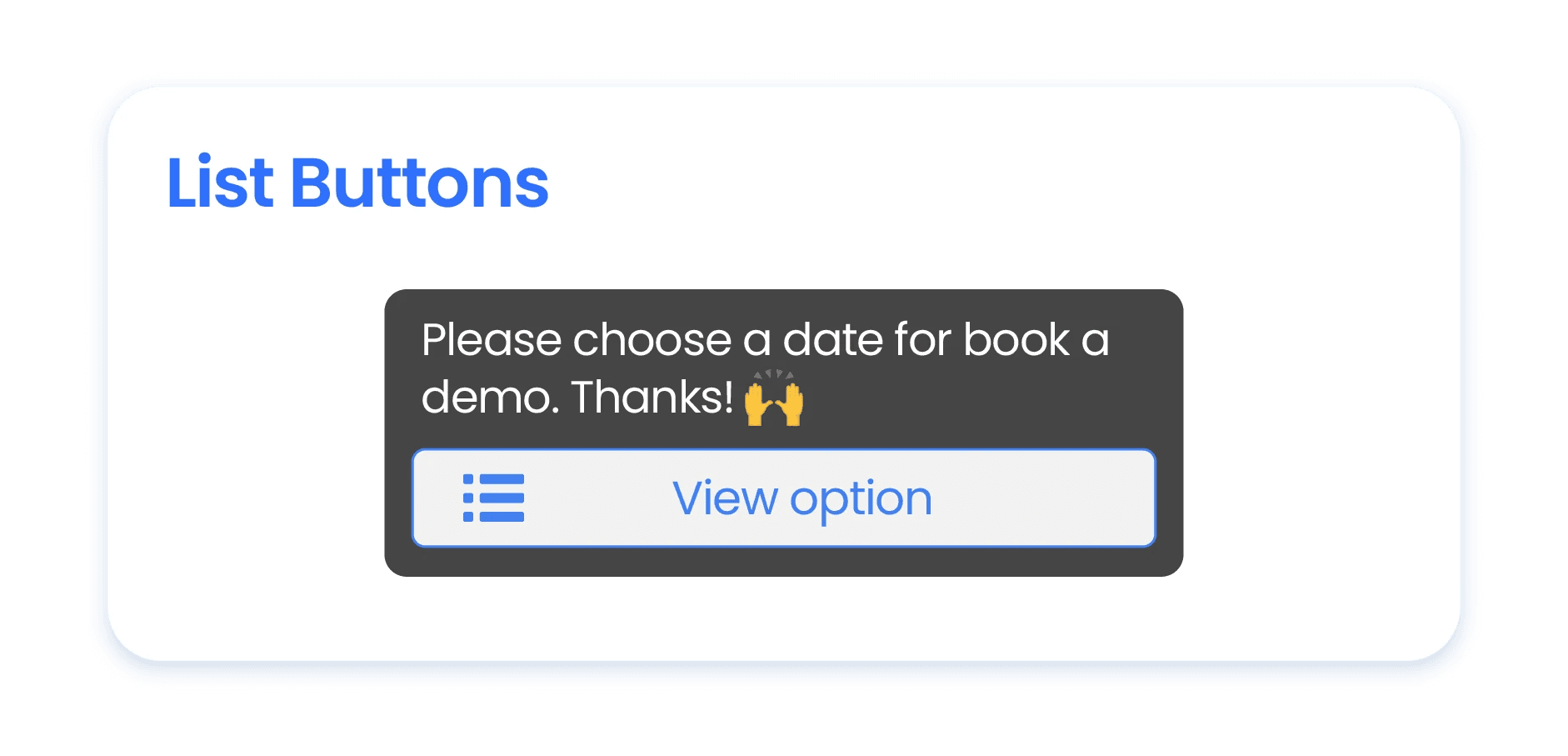 | Auto-split list message options | Enable / Disable (WhatsApp only) |
Allow jumping back to this question | Enable / Disable (WhatsApp only) | |
Button label | Edit the text displayed on the button (WhatsApp only) | |
Prompt to select an option number | Used when Facebook has >13 options, or on WhatsApp when buttons are not supported — customers are prompted to type a number | |
When option is invalid | How the system handles an invalid response: | |
Variable (optional) | Save the customer's answer to a specified variable | |
Options | Add one or more options. | |
Fallback options | Display an alternative set of options instead of repeating the original ones | |
Edit date options | Set a date range when the expected answer is a date. Enabling this clears all existing options |
6.Open Question
Ask a question and collect a free-text or media response.
Icon | Field | Description |
|---|---|---|
 | Question | Enter your question text. Variables and emojis are supported |
Type | Text / Media | |
Variable | Save the answer or media URL to a specified variable |
7.Spreadsheet Lookup
Query data from a Google Sheet or Excel spreadsheet and branch the flow based on the result.
Icon | Field | Description |
|---|---|---|
 | Name | Edit the spreadsheet name |
Select spreadsheet | Click | |
Lookup conditions | Add one or more conditions to search by | |
Actions If Matched | Set Matched record to variable, or set variable value | |
Actions If Not Matched | Set Not Matched record to variable, or set variable value |
8.Payment
Send a payment link within the conversation.
Icon | Field | Description |
|---|---|---|
 | Get product from variable | Enable / Disable |
Configure products and under Settings → Products | Products | Select products and quantities |
Discount | None / Percentage / Fixed amount | |
Can use coupon | Enable / Disable | |
Configure shipping rules under Settings → Products | Waive Additional Fee | Enable / Disable |
Add Booking Invitation After User Paid | Click "+ Add". | |
Apply Exit Conditions | Enable / Disable | |
Time Limit For Payment | Enable / Disable |
9.Label Chat
Automatically add or remove labels from a conversation.
Icon | Field | Description |
|---|---|---|
 | Attach labels | Add one or more labels |
Detach labels | Remove one or more labels |
10.Assign Chat
Automatically assign the conversation to a specific team member.
• Use this when assigning to one designated person. For round-robin assignment, use Component Roster.
Icon | Field | Description |
|---|---|---|
 | User | Select the team member to assign from the dropdown |
11.Unassign Chat
Remove the current assignment from a conversation.
• Use this to remove a single designated assignment.
Icon | Field | Description |
|---|---|---|
 | - | No additional configuration required. |
12.Update Ticket Status
A ticket tracks each customer service interaction. It opens automatically when a customer messages in, and can be closed once the issue is resolved. Use this component to automatically update ticket status within a chatbot flow.
Icon | Field | Description |
|---|---|---|
 | Status | Open / Close |
13.Roster
Automatically assign conversations based on a configured shift group.
Icon | Field | Description |
|---|---|---|
 | Roster group | Select from the list. |
Send staff contact if the WhatsApp Identity is set in Setting > Roster > Roster Users & Roster Groups | Send staff contact | Send / Do not send |
Send staff name card | Send / Do not send | |
Assign in system | Enable / Disable | |
Notify staff | Enable / Disable |
Re-assign when staff does not reply (Enable / Disable)
• The system assigns a staff member and checks for a reply after the set time. If there is no reply, it assigns the next staff member and restarts the timer.
The chatbot workflow continues without waiting.
Icon | Field | Description |
|---|---|---|
| Check After (minutes) | Time the system waits for a reply before reassigning. Resets after each reassignment. |
Max. Reassign Times | Number of reassignments allowed after the initial assignment, up to a maximum of 10 | |
Stop reassigning if any staff member replied | Enable / Disable | |
Stop reassigning after a manual assignment or unassignment | Enable / Disable |
14.Web Confirm Input
Used for input confirmation in web-based forms.
Icon | Field | Description |
|---|---|---|
 | - | No additional configuration required |
15.Delay
Pause the flow for a set duration before the next action is executed.
Icon | Field | Description |
|---|---|---|
 | Delay duration | Set the length of the delay |
16.Quota Counter
Control how many times a feature can be used, such as the number of coupons distributed.
Icon | Field | Description |
|---|---|---|
 | Max. Quota | Set the maximum number |
Variable | Save the assigned sequence number to a variable | |
Forbid Duplicate Entry | Enable / Disable |
17.API Call
Call an external API to integrate data.
Icon | Field | Description |
|---|---|---|
 | - | Refer to iSlash API Documents for configuration details |
18.Jump to Bot
Jump to another chatbot flow.
Icon | Field | Description |
|---|---|---|
 | Chatbot | Select the chatbot to jump to from the dropdown |
Redirect Message | Send a message to the customer at the same time as jumping |
19.Coupon Distributor
Send a coupon within the chatbot flow.
Icon | Field | Description |
|---|---|---|
 | Coupon | Select a created coupon from the dropdown |
Forbid duplicated distribution | Enable / Disable |
20.AI Assistant
Add an AI Assistant to the chatbot flow. Once a customer enters, the AI Assistant remains in the conversation until an exit condition is triggered.
Icon | Field | Description |
|---|---|---|
 | Knowledge base version | Select the knowledge base version |
AI Model | Select the AI model to use | |
Knowledge Base | Select a knowledge base (must be created under Settings → Knowledge Base first) | |
System Prompt | Enter the role and behaviour instructions for the AI Assistant — e.g. tone, scope of answers, restrictions | |
Error message | The message sent when the AI cannot find relevant information, e.g. "Sorry, I don't have that information." | |
Send Error Message with Button | Enable / Disable | |
Must Answer Based on Knowledge Base | Enable / Disable | |
With Chat History | Enable / Disable | |
Include sources in the reply | Enable / Disable |
21.AI Node
A one-time AI handler that reads the incoming message, executes a single task, and exits — it does not remain in the conversation.
• AI Assistant vs AI Node: The AI Assistant stays in the conversation to handle multi-turn questions. The AI Node executes one task and exits — suited for single data processing or classification scenarios.
Icon | Field | Description |
|---|---|---|
| Knowledge base version | Select the knowledge base version (2.0 recommended) |
AI Model | Select the AI model to use | |
Knowledge Base | Select an empty knowledge base | |
Question | The instruction you want the AI to execute. Use $triggering_message to reference the customer's first incoming message | |
System Prompt | Instructions that constrain the AI's output format, e.g. "Only output YES or NO." | |
Error Message | The message sent when the AI cannot find relevant information | |
Send Error Message with Button | Enable / Disable | |
Must Answer Based on Knowledge Base | Enable / Disable | |
With Chat History | Enable / Disable | |
Include sources in the reply | Enable / Disable | |
Variable | The AI Node's output is saved to this variable. Define a name for it (e.g. ai_result). |
22.Flow
Trigger a WhatsApp Flows form within the conversation.
Icon | Field | Description |
|---|---|---|
 | Flow | Select the published WhatsApp Form from the dropdown |
Message | The prompt message customers see before opening the form | |
Button name | The CTA label customers click to open the form | |
Set response to variable | Assign variable names to customer responses for report identification |
23.Track Event
Track and send conversion events to Meta.
• Requires a Dataset to be linked beforehand.
Icon | Field | Description |
|---|---|---|
 | Dataset ID | Enter the linked Dataset ID |
Event name | Enter the name of the event to track | |
Custom data (optional) | Refer to Meta's Standard Events reference for accepted parameters |
24.Subscribe Sequence Broadcast
Sequence Broadcast is a broadcast method that automatically sends a series of messages to subscribers in a predefined sequence at set time intervals. Use this component to add or remove a customer from a subscriber list to trigger or stop the corresponding sequence.
• Applies to WhatsApp and Facebook contacts only
Icon | Field | Description |
|---|---|---|
 | Action | Subscribe / Unsubscribe |
Add to Subscriber List | Select a created subscriber list |
25.Condition
Branch the flow based on conditions, splitting into two paths: Match and Not Match.
• Variable
Icon | Field | Description |
|---|---|---|
 | Select variables | Choose the variable to use as the condition: |
Find By | • Includes | |
Text | Enter the text to compare against |
• Label
Icon | Field | Description |
|---|---|---|
 | Find By | Includes / Excludes |
Select label | Choose the label to evaluate |
• Instagram Following Status
The system automatically checks whether the customer follows your Instagram channel:
• Follower = Match
• Non-follower = Not Match
Insights


Does iSlash AI offer AI Agent and Chat Automation building services?
Yes, please reach out to us for customer journey planning and automation flow building services. Support charge applies.