WhatsApp API: Types of Message Template
Last update:
Message templates let you send richer messages — with buttons, images, product cards, and more — that drive action directly inside WhatsApp. They work across all customer stages, from first touch to post-purchase follow-up.
Only templates can reach customers after the 24-hour service window closes. Once a customer's last message is more than 24 hours old, standard replies are blocked. Templates are the only way to re-engage — making them essential for follow-ups, promotions, and re-activation campaigns.
Standard Message Templates:
Standard templates are the most flexible template type. Use them to send messages outside the 24-hour window, prompt customers to take action, or deliver information in a structured format with quick-reply buttons.
Requirements:
✅An active iSlash-connected WhatsApp Business API / WhatsApp Coexistence number
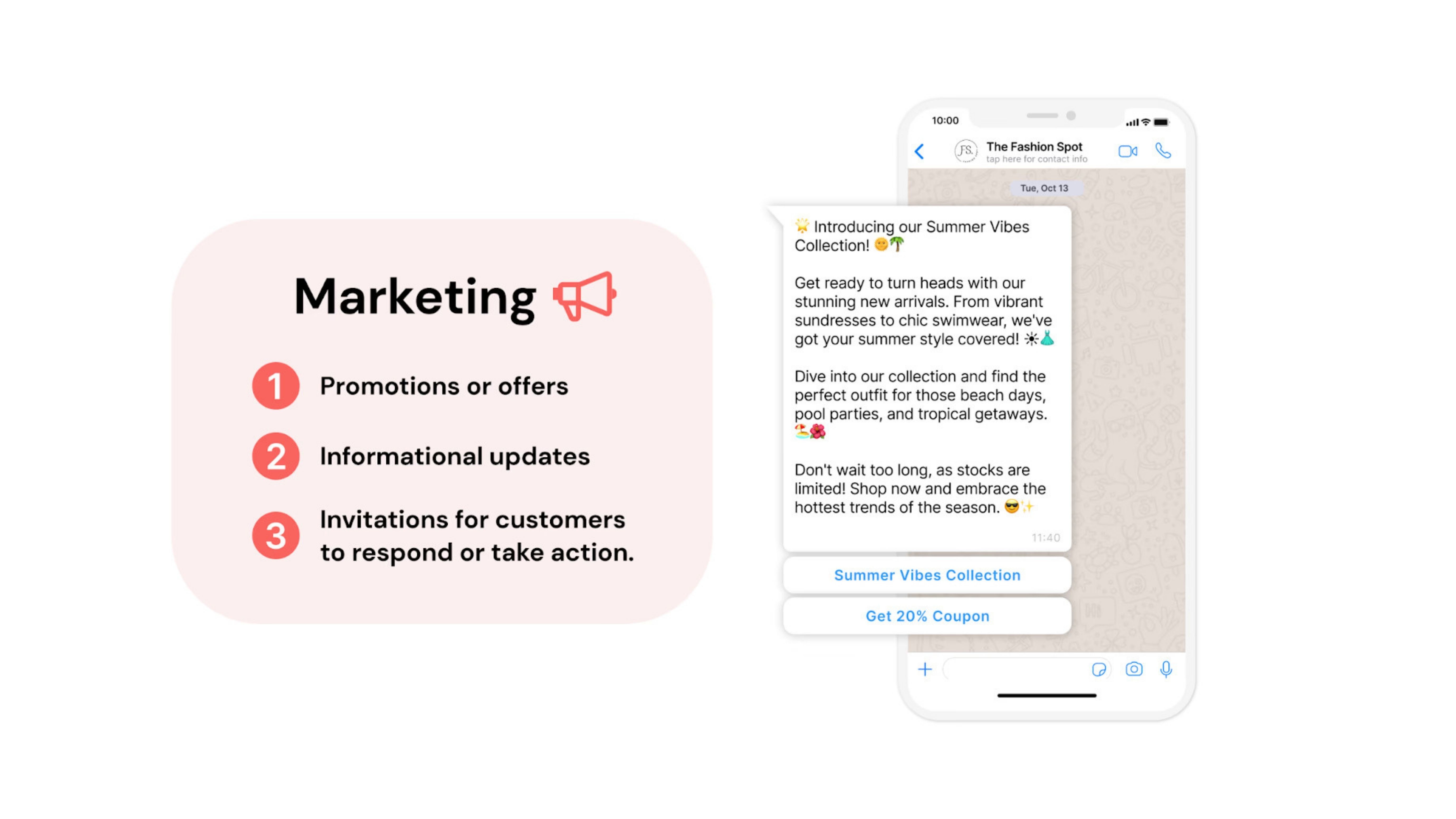
Marketing : Promotions, product launches, re-engagement campaigns, and seasonal offers. Ideal for driving conversions.
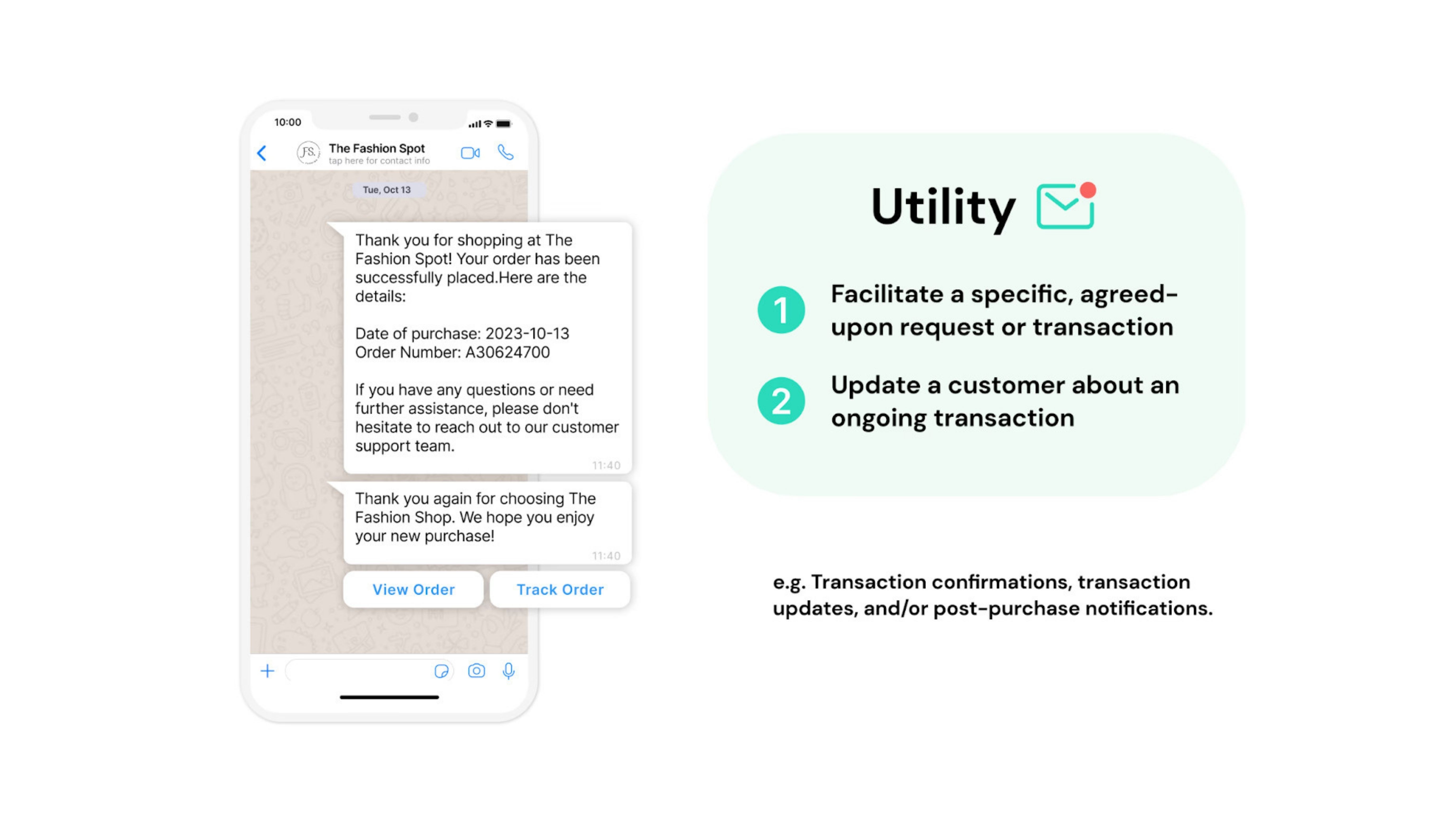
Utility: Order updates, appointment reminders, shipping notifications. Triggered by user actions to keep customers informed.
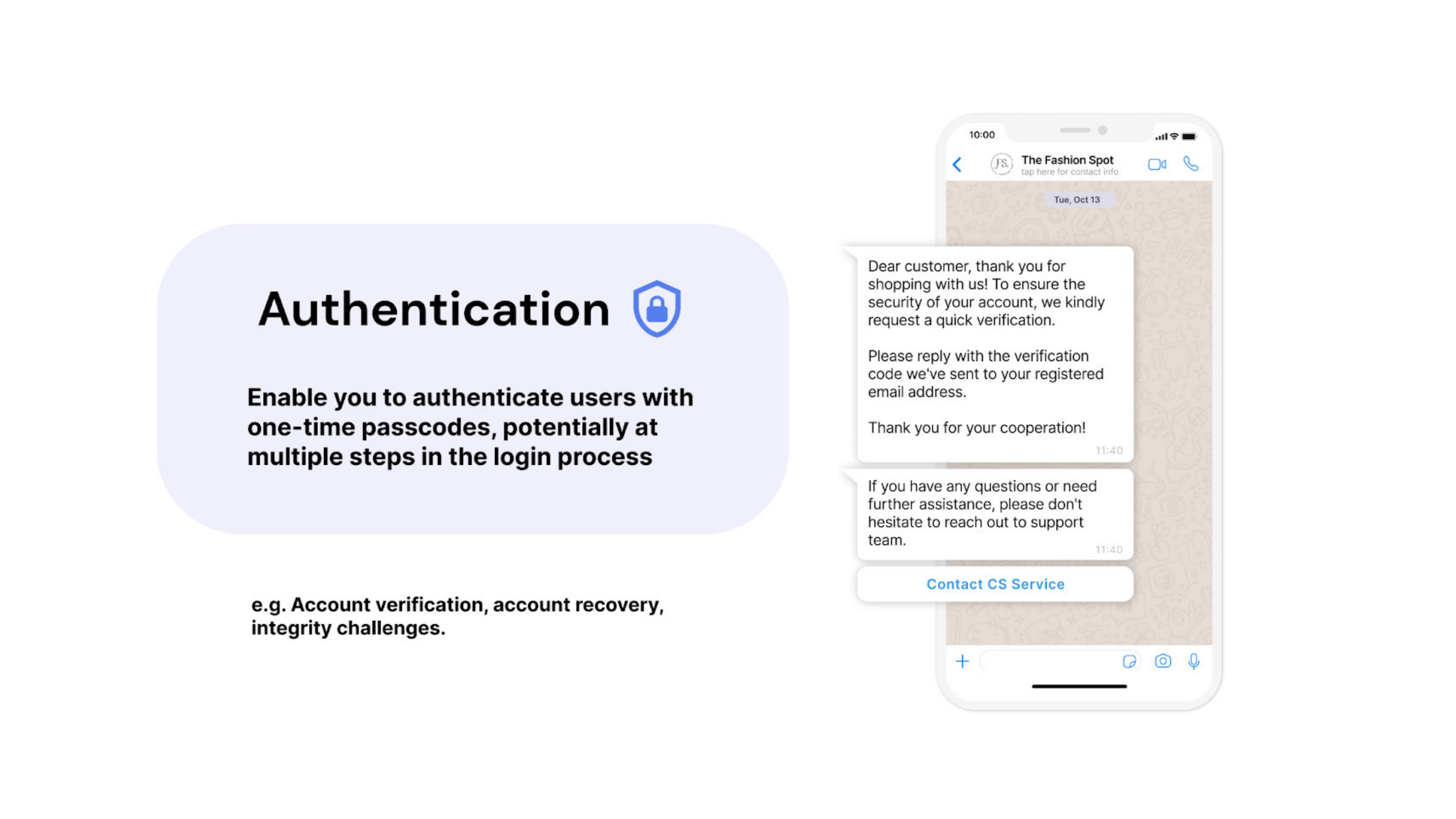
Authentication: One-time passwords and verification codes at any step of the customer journey — login, checkout, account recovery.
Catalog Message Templates:
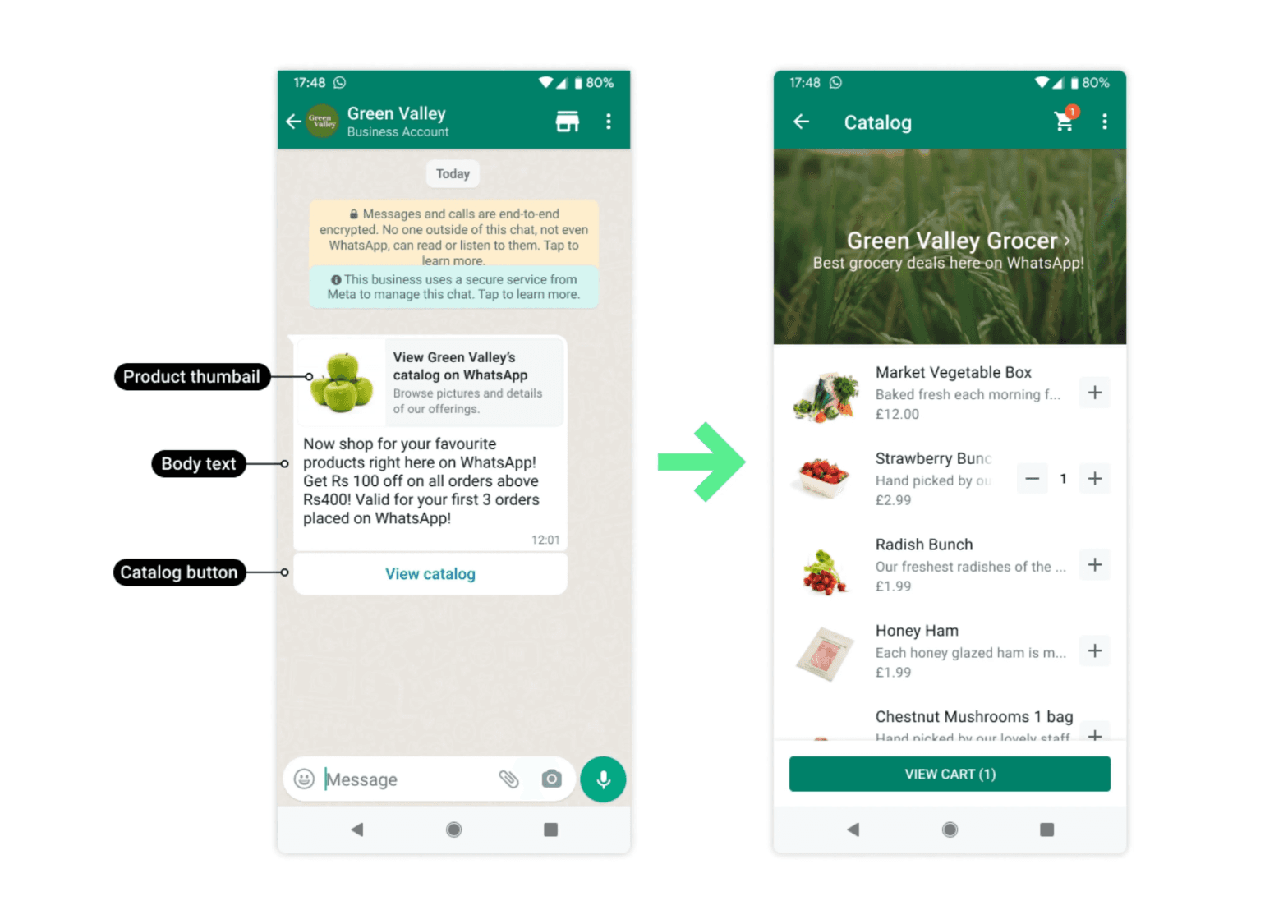
Catalog templates surface your entire Meta product catalog inside WhatsApp with a single tap. Customers browse, explore, and enquire, all within the chat.
✅ Customers tap "View catalog" and your full product range appears instantly within the chat
✅ Display a custom thumbnail image and body text alongside a fixed header and sub-header
✅ Reduces drop-off caused by redirecting customers to external links
Single Product Message Template
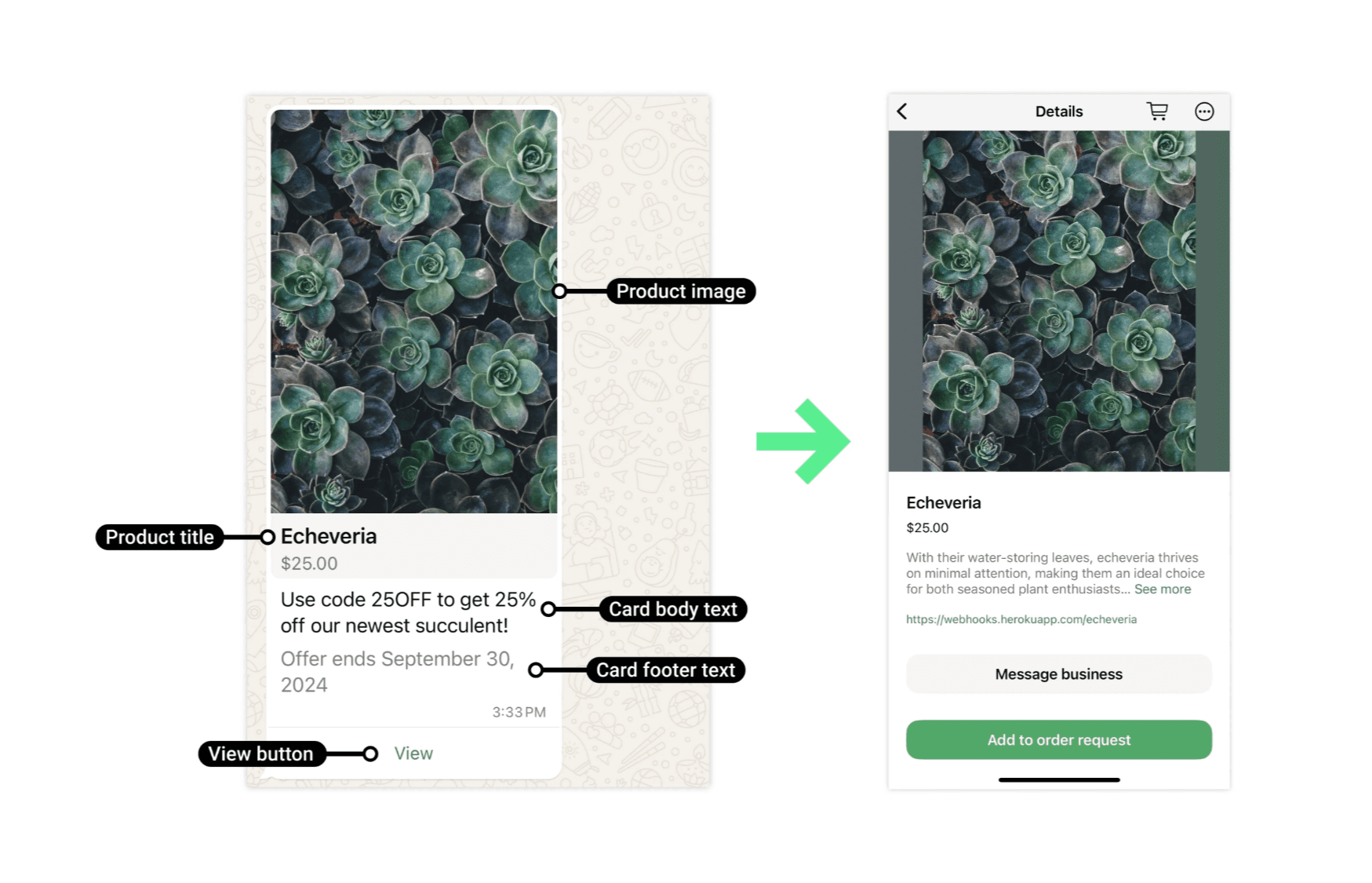
Single product templates pull a product's image, title, and price directly from your catalog and present it in a rich, tappable card. Customers can add the product to their WhatsApp cart and place an order without ever leaving the chat.
✅ Product image, name, and price auto-populated from your catalog
✅ Customers add to cart and checkout entirely inside WhatsApp
✅ Customisable body text and optional footer let you add context or urgency
Product Carousel Message Templates
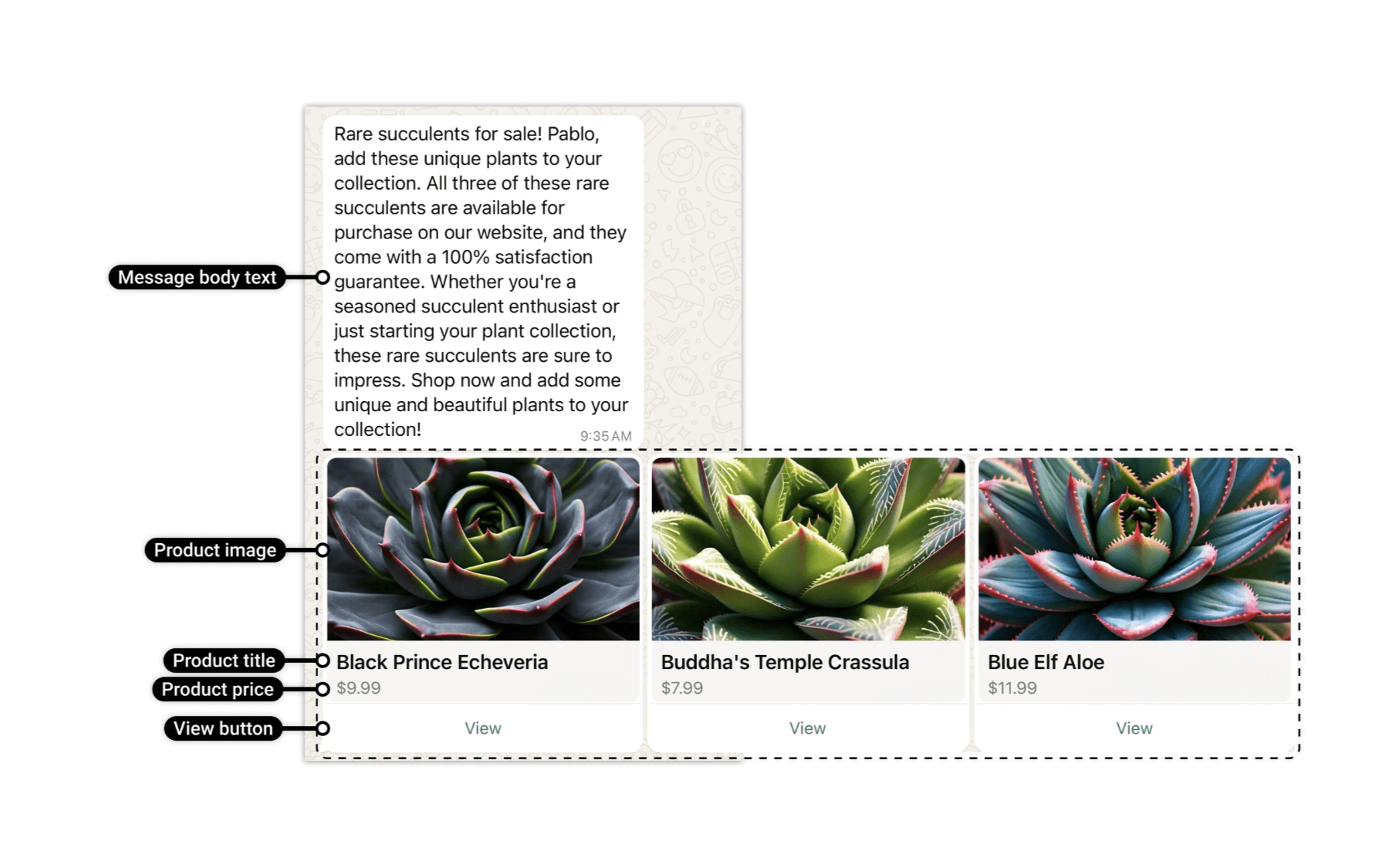
Product carousel templates send one text message with up to 10 product cards arranged in a scrollable row. Each card shows product info from your catalog. Customers swipe, tap, add to cart, and order.
✅ Up to 10 products in a single swipeable message — more exposure, one send
✅ View button shows full product details; URL button sends customers to your site
✅ Best for "you might also like", collections, or comparing variants
To use Catalog, Single Product & Product Carousel Message Templates, you need to fulfill these requirements:
Product catalog in Meta Commerce Manager, see here.
WhatsApp Business Account (WABA) connected to catalog, see here
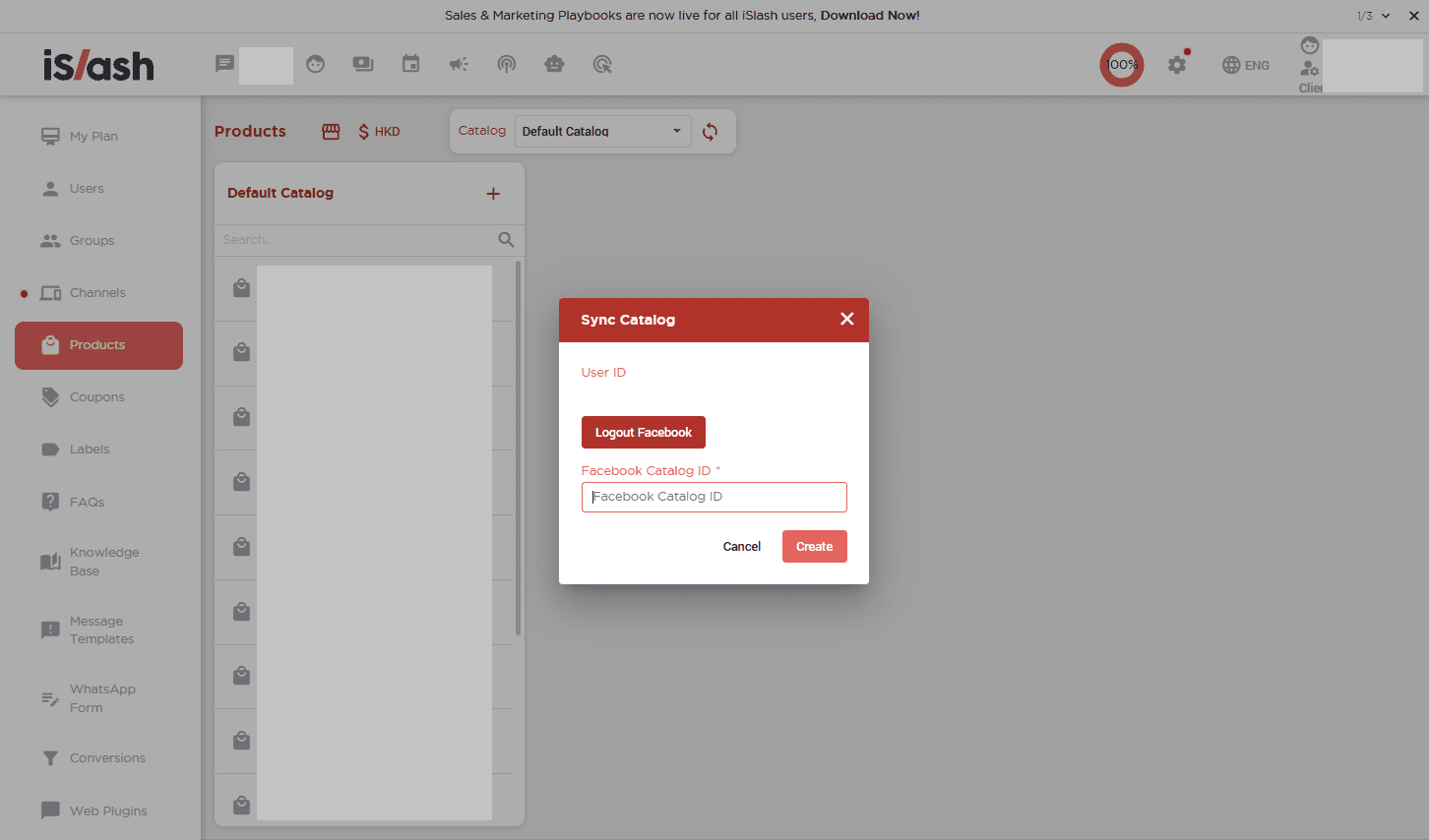
Your Facebook catalog linked to iSlash account.
Go to Settings → Products. Click the 「Sync」 Button and key in the same 「Facebook Catalog ID」.
Per-message Pricing
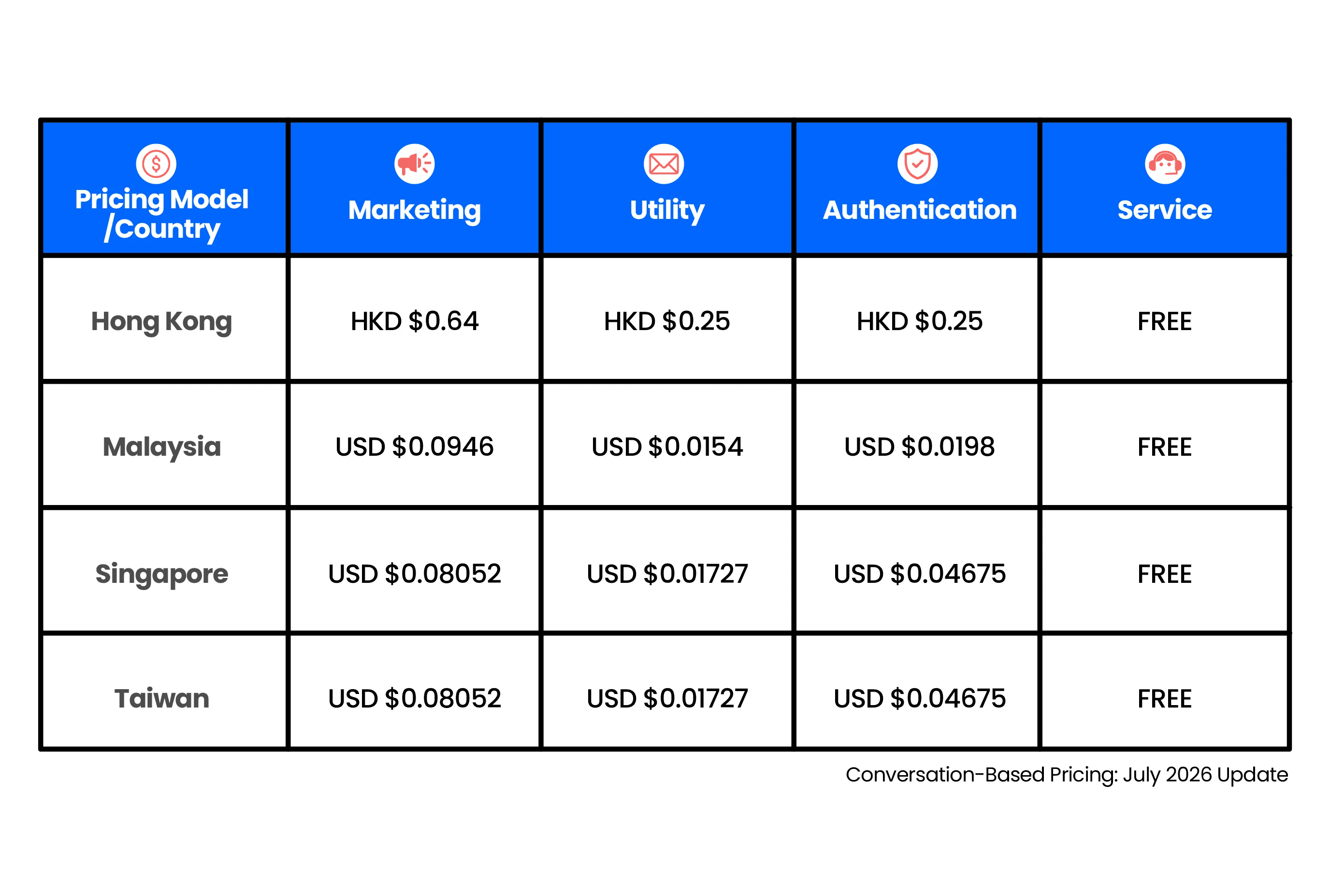
Template message charges are based on the recipient's country, determined by their phone number's country calling code and network prefix. Each conversation category (marketing, utility, authentication) may carry different rates.
Insights


Why can’t just send a regular message to my customer?
WhatsApp limits when businesses can send free-form messages to protect users from spam. Once a customer's last message is more than 24 hours old, you can only reach them using a pre-approved message template. This applies to all outbound, business-initiated messages — promotions, reminders, follow-ups, and more.
If a customer messages you first, a 24-hour service window opens and you can reply freely without a template. The moment that window closes, templates are the only option.
How long does template approval take?
Meta typically reviews templates within a few minutes to 24 hours. During review, your template will show a "Pending" status. You'll be notified via email and in WhatsApp Manager once a decision is made.
How do I sync my Facebook Catalog ID for the Product Carousel?
In iSlash, go to Settings → Products → Sync Catalog, enter your Facebook Catalog ID, and click Create. Your catalog ID can be found in Meta Commerce Manager under your catalog's settings.
Once synced, your products will be available to use in Carousel templates. If you add new products to your catalog in Meta, re-sync to make sure they appear.
How am I charged for sending message template?
Charges are per-message basis:
Only charge when a template message is delivered
Rates vary based on the template's category and the recipient WhatsApp phone number's country calling code.