AI Assistant: Deploy in AI Agents
Last update:
Welcome to your guide for setting up, training, and optimizing your iSlash AI Assistant. iSlash AI Assistant is powered by ChatGPT, Gemini and Qwen. This manual covers preparation steps, knowledge base training, prompt design, and how to get the most out of your AI-powered assistant.
Before You Begin
Please make sure that you have gone through the Preparation Checklist and Knowledge Base Training.
If you haven't, please visit AI Assistant (I) - Knowledge Base Training.
Setup Requirements
AI Assistant module enabled (please refer to iSlash AI Support Team).
Knowledge Base Training completed (please refer to article).
Step-by-Step Guide
Logon to iSlash AI Platform at https://app.islash.io/, go to AI Agents:
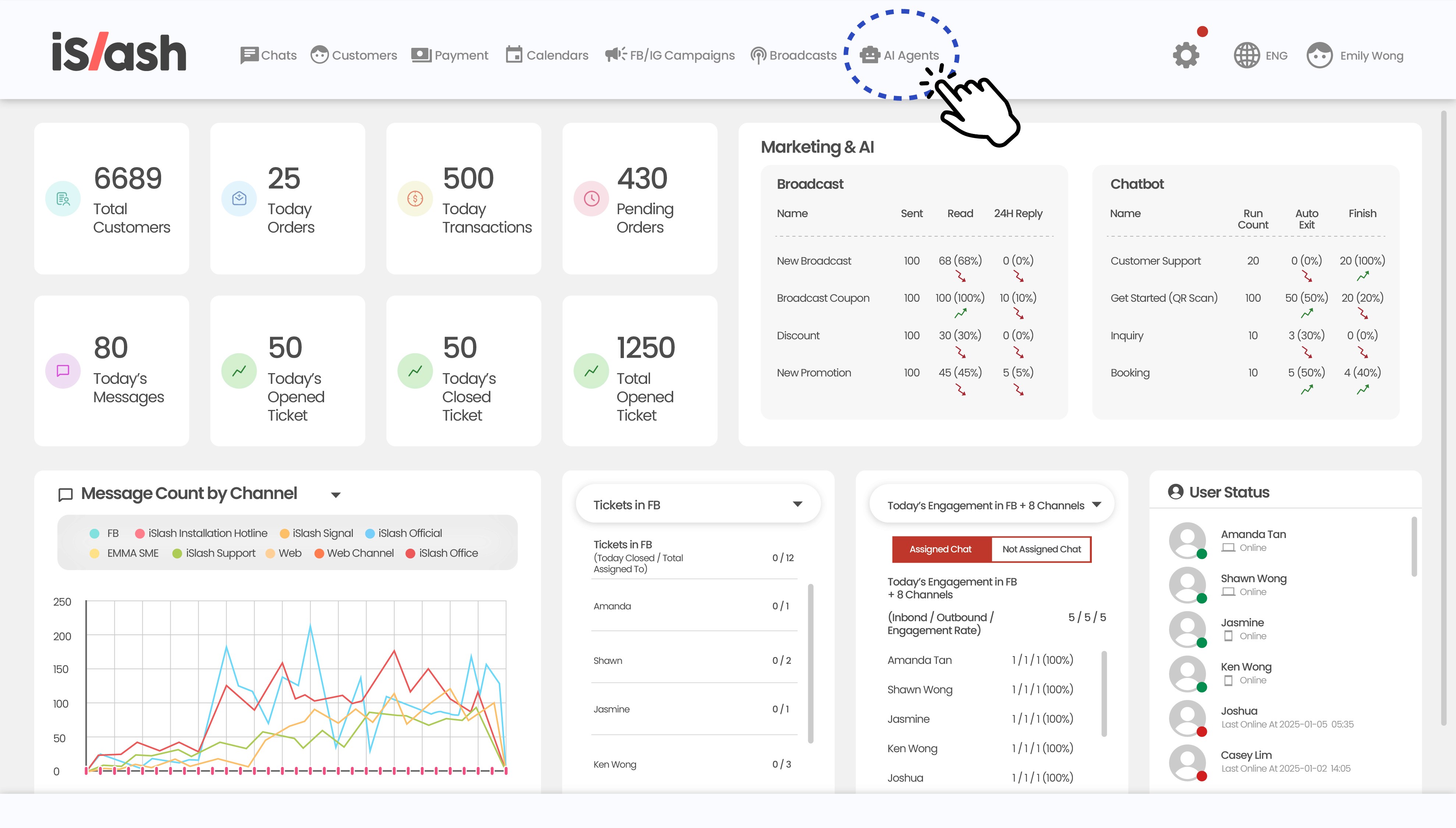
Click "Create" buttons to create a new chatbot.
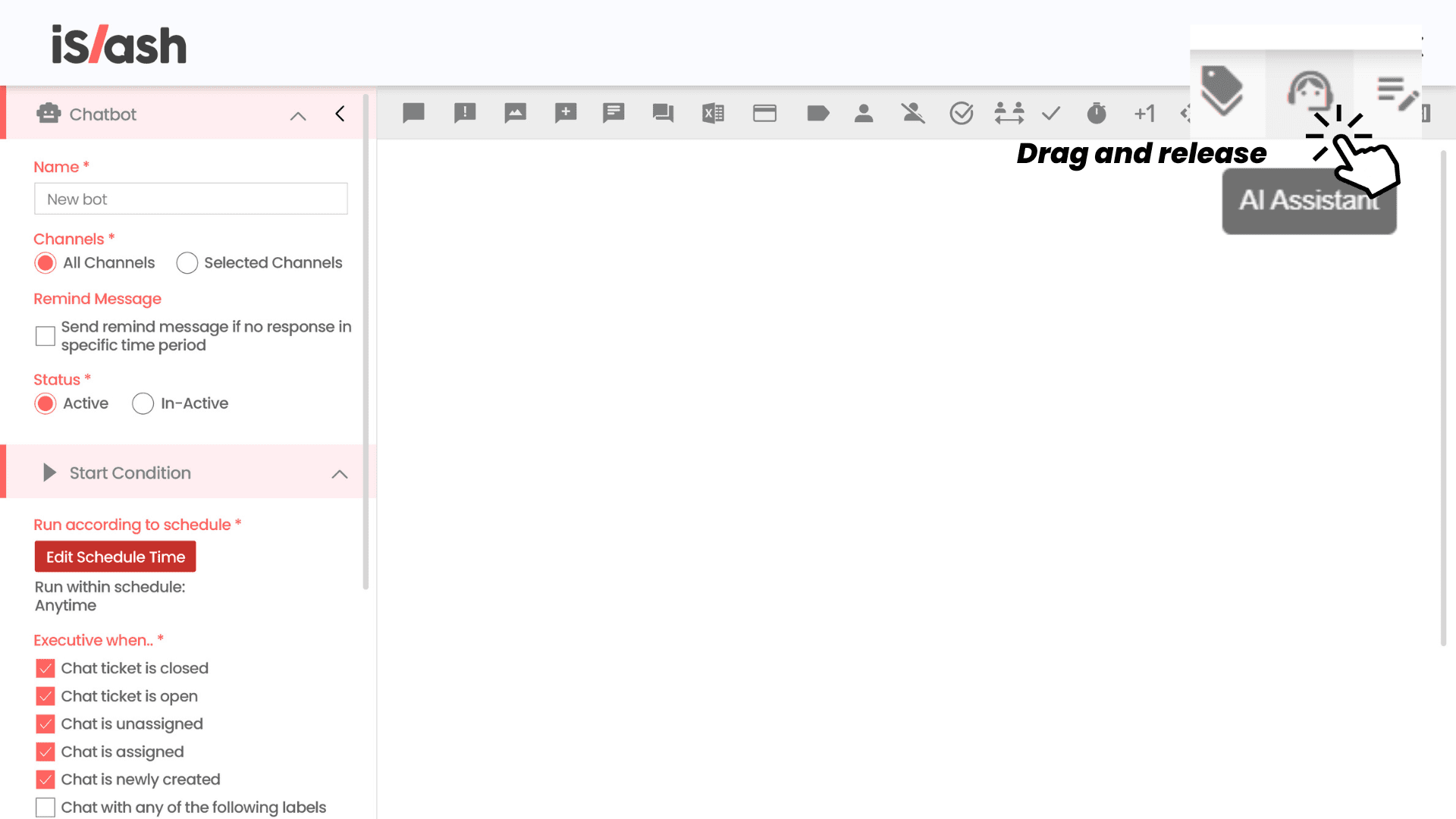
At top function bars, look for AI Assistant, drag and release to create (refer image above), and start editing your AI Assistant:

(i) Knowledge Base Version: Choose which knowledge base engine powers your AI Assistant.
If your Knowledge Base is set to 1.0, you can pair it with either AI Assistant 1.0 or 2.0.
If your Knowledge Base is set to 2.0, you can only use AI Assistant 2.0.
(ii) AI Model: Choose which AI "brain" answers your customers.
Pick from OpenAI, Gemini, or Qwen.
(iii) Knowledge Base: Select which trained knowledge base this AI Assistant should use.
Pick from the dropdown list of knowledge bases you've already set up and trained. This tells the AI Assistant where to pull answers from.
(iv) System Prompt: Set the instructions that guide how your AI Assistant behaves.
This is where you tell the AI who it is, how it should respond, and what tone to use — like giving a new staff member their job briefing before they start talking to customers.
💡 Example: "You are a friendly customer service assistant for [Your Company]. Answer only using the knowledge base. Keep replies short and polite.”
🧩 System Prompt Components
There are five main parts in a System Prompt, which are Priming, Style & tone instructions, Handling errors & edge cases, Dynamic content and Output formatting.
Components | Example | Template : Prompt with Retrieved Knowledge |
|---|---|---|
PRIMING | You are a plumbing Q&A bot that answers questions about plumbing in a helpful way. | You are a [function] Q&A bot that answers questions about [function] in a helpful way. |
STYLE & TONE INSTRUCTIONS | Use 10th grade language and explain things in a simple way that anyone can understand. | Use simple language and explain things with layman terms, so that anyone can understand. |
HANDLING ERRORS & EDGE CASES | If a question is irrelevant to plumbing, gently decline to offer because it’s not your area of expertise. | If a question is irrelevant to [function], gently decline to offer because it’s not your area of expertise. |
DYNAMIC CONTENT | User inquiry: “How do I fix a leaky faucet?” | User inquiry: {a common question about said function}. |
Use this to help if relevant: “Plumbers Handbook, Chapter 1: Fixing Common Leaks - Every plumber needs to know how to fix common household leaks, including leaky faucets. The three most common reasons for a leaky faucet are…” | Use this to help if relevant: {knowledge} | |
OUTPUT FORMATTING | Example format: “Acknowledge > Answer > Optional Link to Resource” | Respond in sentences like a friendly customer service representative would do, follow this pattern: [acknowledge the question], [provide answer], [provide reference link if available in knowledge base]. |
💡 These components don’t have to appear in fixed order. Customize for your brand voice.
Once you have input the System Prompt, let's consider when user came in and ask questions that are irrelevant to you and your establishment.
On top of that, AI Assistant is unable to answer to single word enquiry, such as "food", "best recommendations"; instead, user will need to enquire in relatively complete sentence, such as "what is your best selling menu?", "your best recommendations for drinks are?".
(v) Error Message: Set the fallback reply when the AI can't find an answer.
If the AI Assistant doesn't have relevant information to answer a question, it will show this message instead of guessing or giving a wrong answer.
💡 Example (already shown as placeholder): "Sorry, I don't have the information, please type 'cs' or click the button to chat with our customer service team."
(vi) Other AI Assistant settings you may tick to enable:
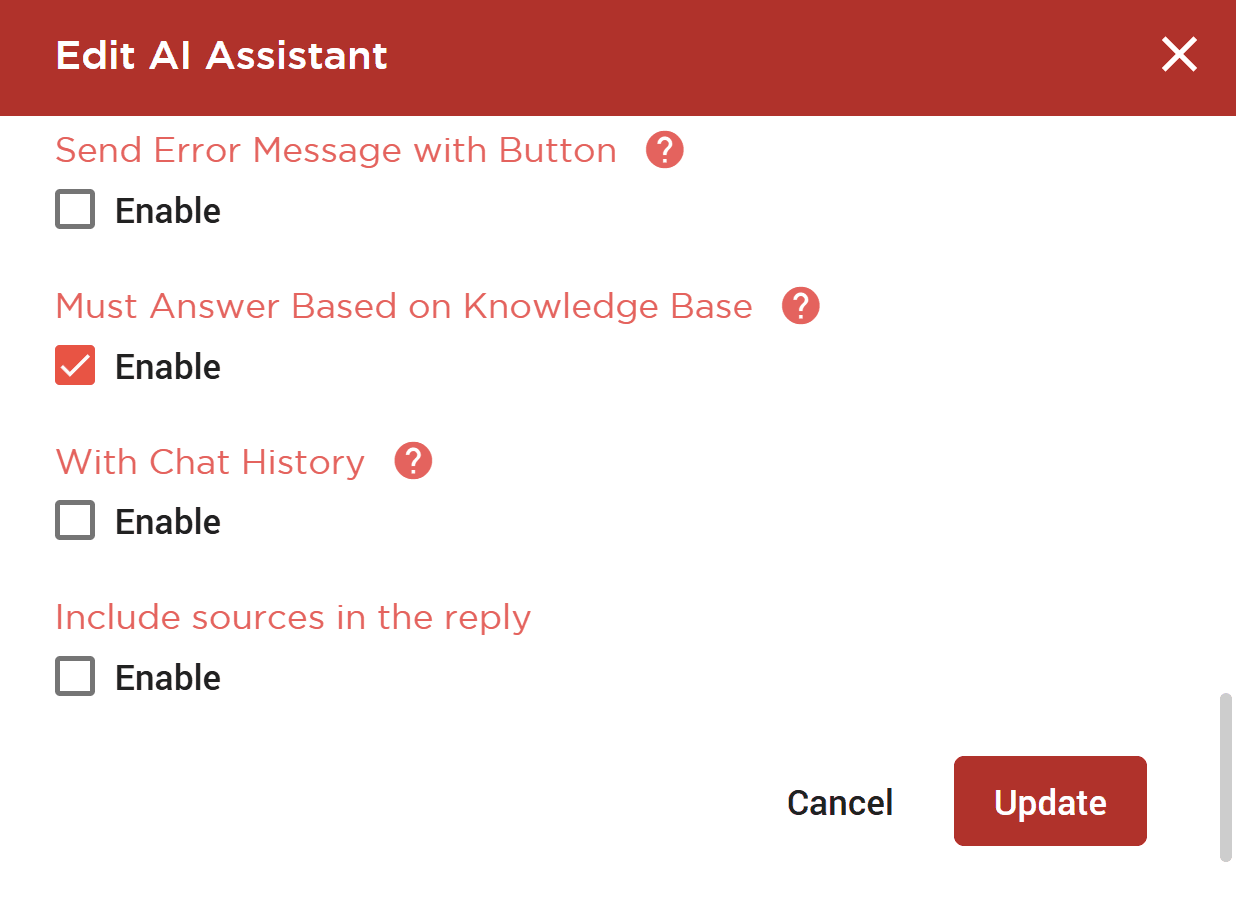
Must Answer Based on Knowledge Base : When enable, AI Assistant will answer strictly based on information found and indexed from Knowledge Base.
With Chat History : When enable, AI Assistant will refer to chat history when responding.
Include sources in the reply : When enable, AI Assistant will list down reference used after answer, when responding.
(vii) Once you have completed the setting, click "Update" to save.🎉 Your AI Assistant is now up and running, answering your customers automatically — 24/7!
🛠️ Tips for Optimization (for Power Users)
Avoid uploading raw or unstructured documents.
Keep information concise and organized by topic.
Use natural, explanatory text (as if you’re writing a help article).
When using embedding models, validate that the data is chunked appropriately and indexed correctly.
Learn more:
Insights


Why is my AI Assistant not answering some questions correctly?
Please check the following:You’ve uploaded well-structured, complete knowledge base content (avoid raw tables or fragmented text)
The System Prompt defines the AI’s role and response scope
If "Must Answer Based on Knowledge Base" is enabled, make sure the content has been properly indexed
Also avoid vague or one-word queries like "food" or "promotion". Instead, use complete sentences such as "What are your best-selling items?"