Product: Automatic Order Surcharges
Last update:
Automatically add extra charges to an order based on the order amount (e.g., a shipping fee, a small-order surcharge) — no manual calculation needed. Once you set the trigger condition, the system checks it automatically when an order is created, and includes the charge in the order total on the invoice and payment page.
Prerequisite
An active iSlash AI account
Set Up an Additional Charge
This article covers setup for Additional Product only. To add a regular product, see WhatsApp eShop.
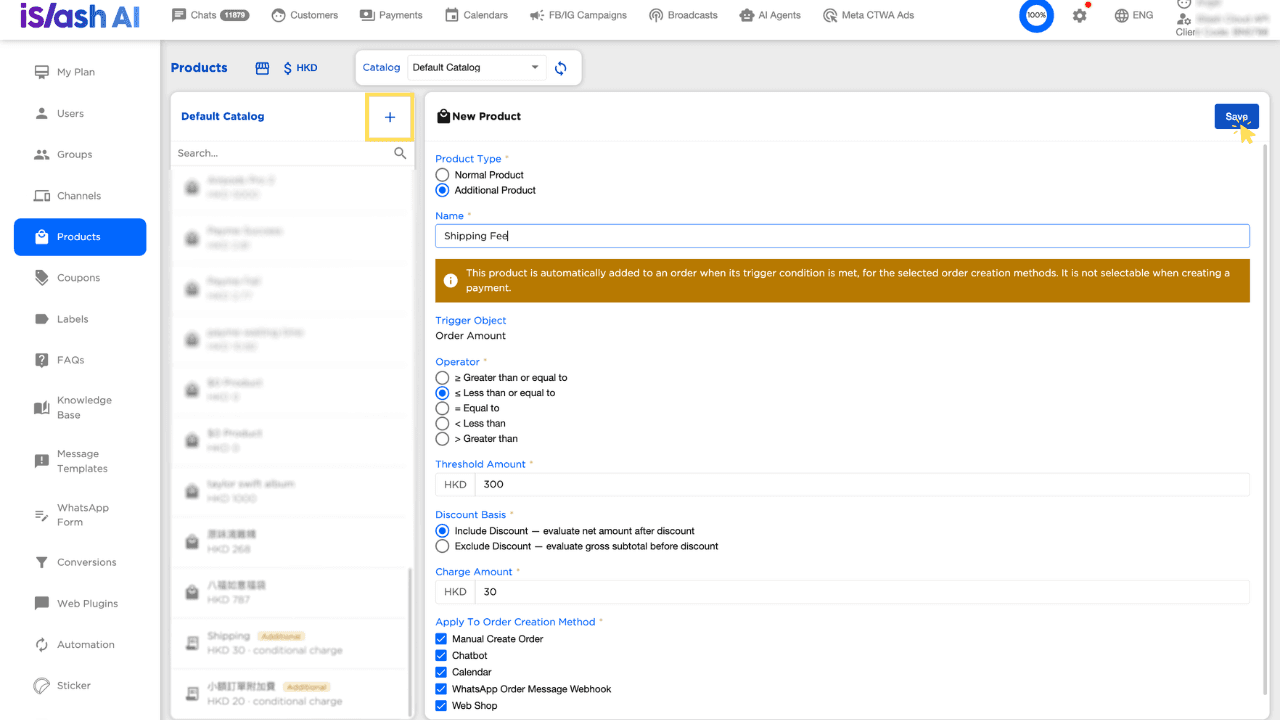
Go to Settings > Products, and click ➕ to create a new product
For Product Type, select Additional Product
Enter a Name
• This is the line item name shown in the order summary, invoice, and payment page — e.g., Shipping FeeSet the trigger condition:
Field
Description
Trigger Object
Order Amount (fixed by the system)
Operator
• ≥ Greater than or equal to
• ≤ Less than or equal to
• = Equal to
• < Less than
• > Greater thanThreshold Amount
The amount that triggers this charge
Discount Basis
Include Discount
• calculated on the discounted (net) amount
Exclude Discount
• calculated on the pre-discount (gross) amountCharge Amount
The amount added once the condition is met
Apply to Order Creation Methods
Multi-select:
• Manual Order Creation
• Chatbot
• Calendar
• WhatsApp Order Message WebhookClick Save
Note: When an order meets the trigger condition, the system automatically adds this product to orders created through the selected method(s). You cannot manually select this product when creating a payment.
Additional Products do not appear in the regular product selection list — they can only be added to an order automatically based on the trigger condition, not manually.
Example: Completed Form
Order Creation Methods
Method | Description |
|---|---|
Manual Order Creation | Create an order manually within a customer's chat |
Chatbot | Orders created through a Chatbot (AI Agent) flow |
Calendar | Orders created through a built-in calendar booking |
WhatsApp Order Message Webhook | Customer places an order via WhatsApp Business Catalog |
How to Set Up Each Order Creation Method
Manual Order Creation
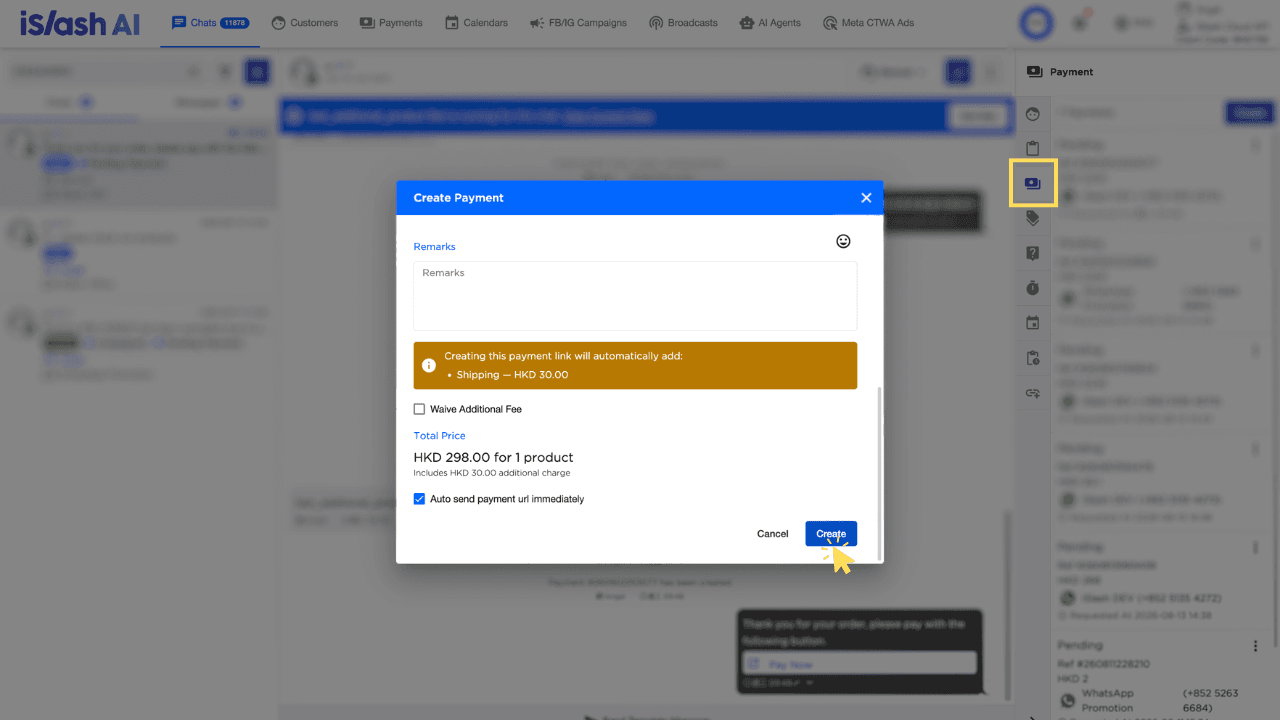
In the customer's chat, open the customer profile side panel, click the Payment icon, then click Create
Select the Product(s) and Quantity, and set Payment Link Expiry, Discount, and Allow Coupon as needed
If the order amount meets an additional charge's trigger condition, a prompt appears listing the additional charge(s) that will be added automatically and their amount, for example:
Creating this payment link will automatically add: Shipping Fee — HKD 30.00
To waive this charge, ☑ check Waive Additional Charge
Fill in the remaining payment details, then create the payment link
Example: Completed Form
Chatbot (AI Agent)
When adding a Payment step to an AI Agent flow:
Under Product, select the product(s) to sell and the quantity
Set Discount and Allow Coupon as needed
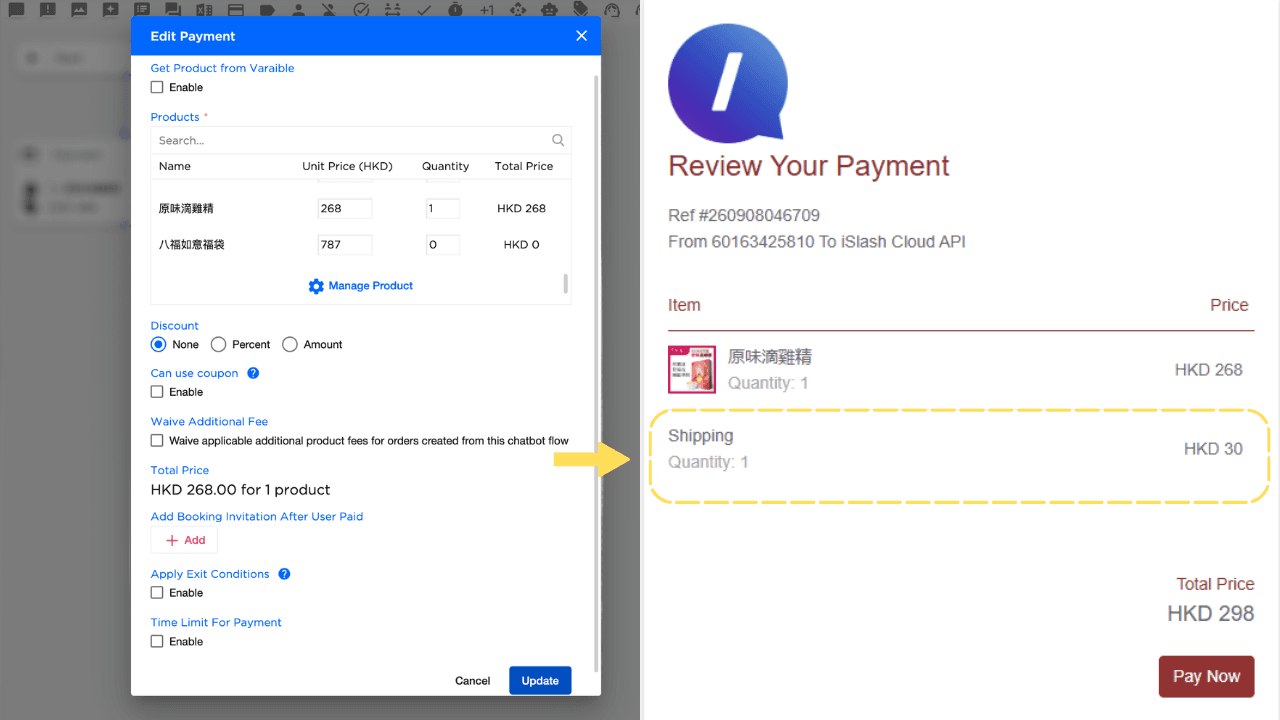
To waive the additional product charge, check Waive Additional Charge — "Waive applicable additional product charges for orders created through this chatbot flow"
The calculated amount appears in the payment link the customer receives
Example: Completed Form
Calendar
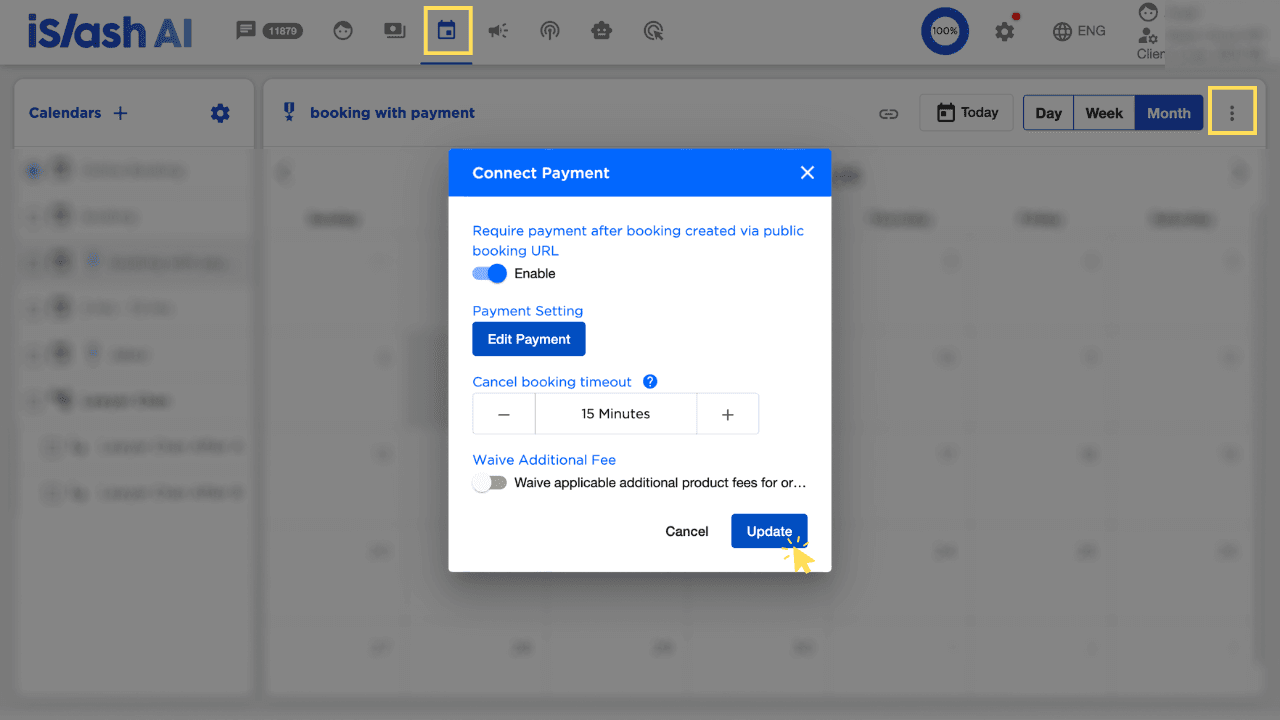
In Calendar settings, open
⋮> Link PaymentEnable "Require payment after booking created via public booking URL"
Click Edit Payment to set up payment details
To waive the additional product charge, turn on Waive Additional Charge — "Waive applicable additional product charges for orders created through this calendar"
Click Update
Example: Completed Form
WhatsApp Order Message Webhook
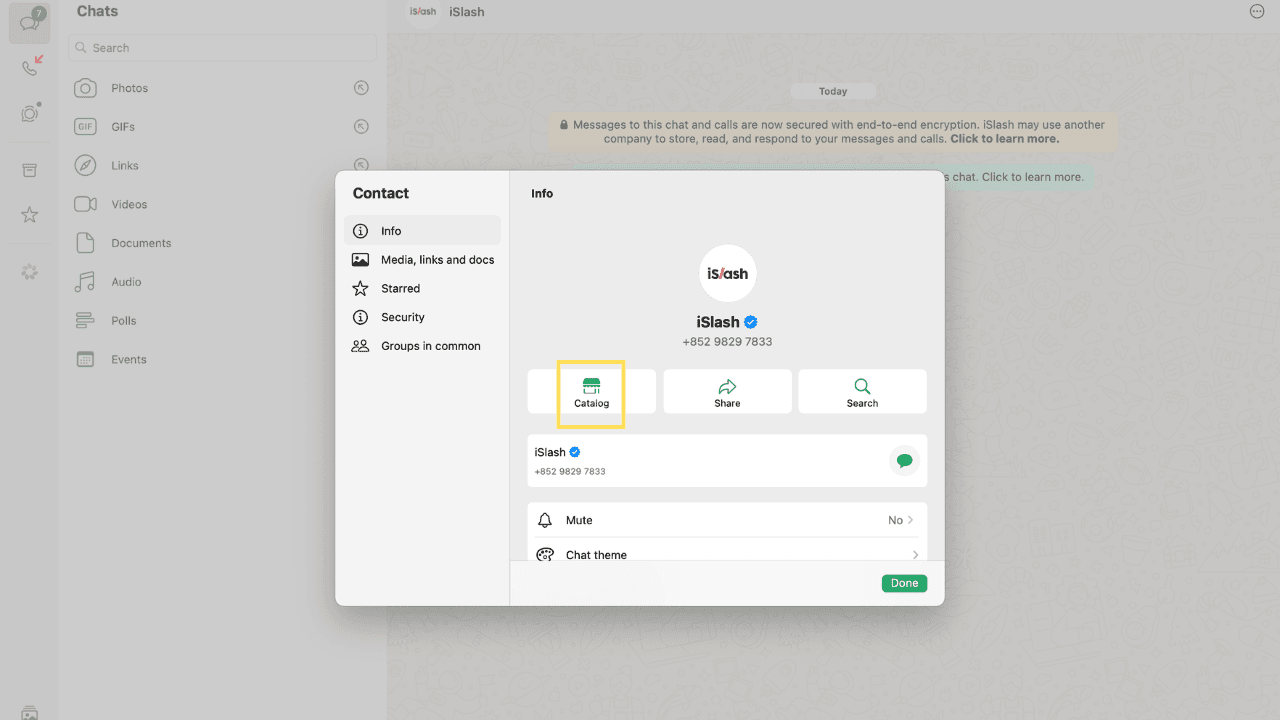
When a customer places an order through the product catalog in your WhatsApp Business account, the system automatically adds the additional charge if the order amount meets the trigger condition.
Learn how to connect your catalog to your WhatsApp Business account.
How It Works at Checkout
When an order is created through a selected channel and the amount meets the trigger condition, the system will:
Automatically add the additional charge as a separate line item in the order (e.g., Shipping Fee) — when the customer opens the payment link, they'll see this item and amount included in the total due
Update the order total instantly
Show a preview before order confirmation, listing the additional charge name, amount, and whether it has been waived
Additional charges are applied in full after discounts (a percentage discount does not reduce the additional charge amount).
If the Discount Basis is set to "Discount included," the system automatically re-evaluates whether the charge still applies after a coupon is applied.
Order Creation Method | Supports Waiving Additional Charge |
|---|---|
Manual Order Creation | ✅ |
Chatbot | ✅ |
Calendar | ✅ |
WhatsApp Order Message Webhook | ❌ |
Insights


1. Can I set up multiple Additional Products at the same time?
Yes. Each Additional Product has its own independent Trigger Target, Operator, Threshold Amount, and Charge Amount:
If an order meets the conditions for more than one Additional Product, all of them are triggered and shown as separate line items, added to the order total
If it only meets one condition, only that one is added
If neither condition is met, nothing is added
2. If I edit an Additional Product's settings (e.g., the threshold amount) after orders or invoices have already been created, will existing orders be affected?
No. Changes to an Additional Product's settings only apply to orders created afterward. Amounts on existing orders and payment links remain unchanged.