Onboarding WhatsApp Coexistence
Last update:
WhatsApp Coexistence lets you keep your existing WhatsApp Business App number and chat history, so the same phone number can be used on both the WhatsApp Business App and the WhatsApp Cloud API (iSlash AI) at the same time.
You can carry on using the mobile app you already know for everyday conversations, while iSlash AI unlocks automation and omnichannel features — no need to change your number or migrate your account.
Before you start
Your Facebook Page is linked to the WhatsApp Business App
The WhatsApp Business App is updated to the latest version
You have full admin or owner access to the Meta Business account
Step-by-Step Guide
Step 1: Go to Channel settings
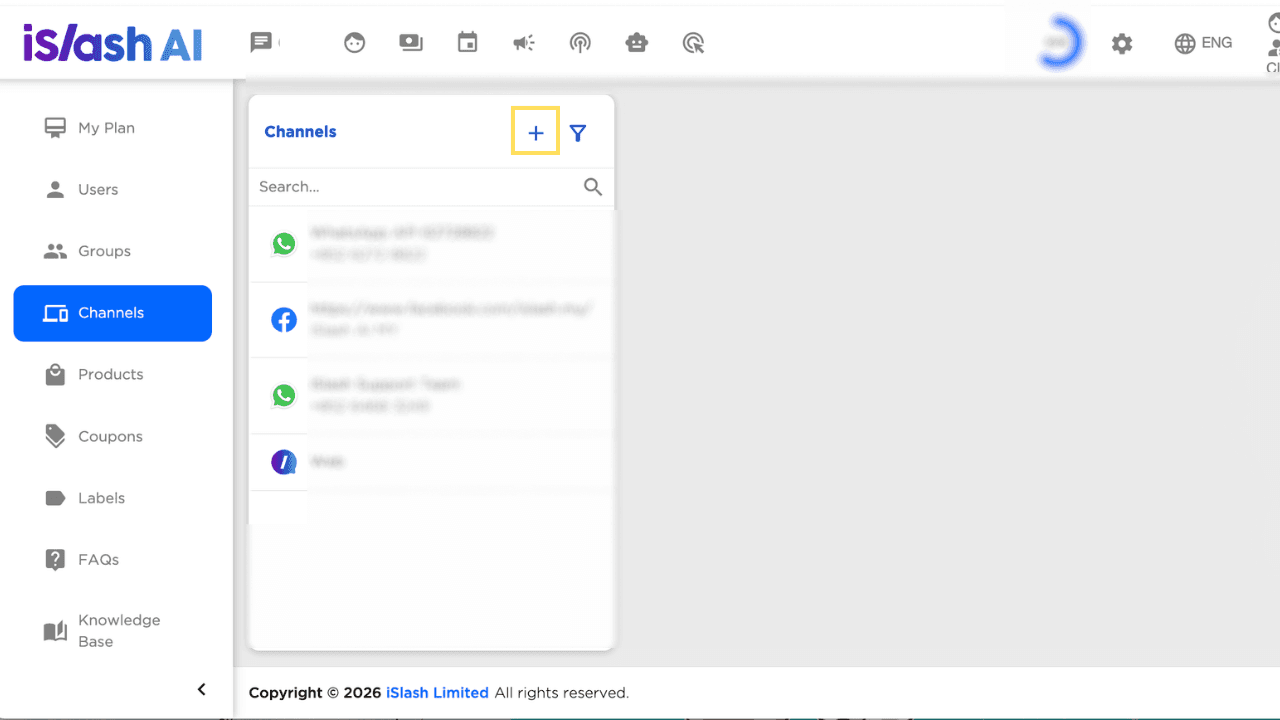
Log in to the iSlash AI platform and go to Settings > Channels.
Step 2: Create a New Channel
Click “➕" to create a new channel, then fill in:
Name: give this channel a name of your choice
Time zone: select your business's time zone
Platform: select "WhatsApp Official API"
After selecting the platform, you'll see two options: "Migrate Channel" and "WhatsApp Business (Coexistence)". Only enable "WhatsApp Business (Coexistence)".
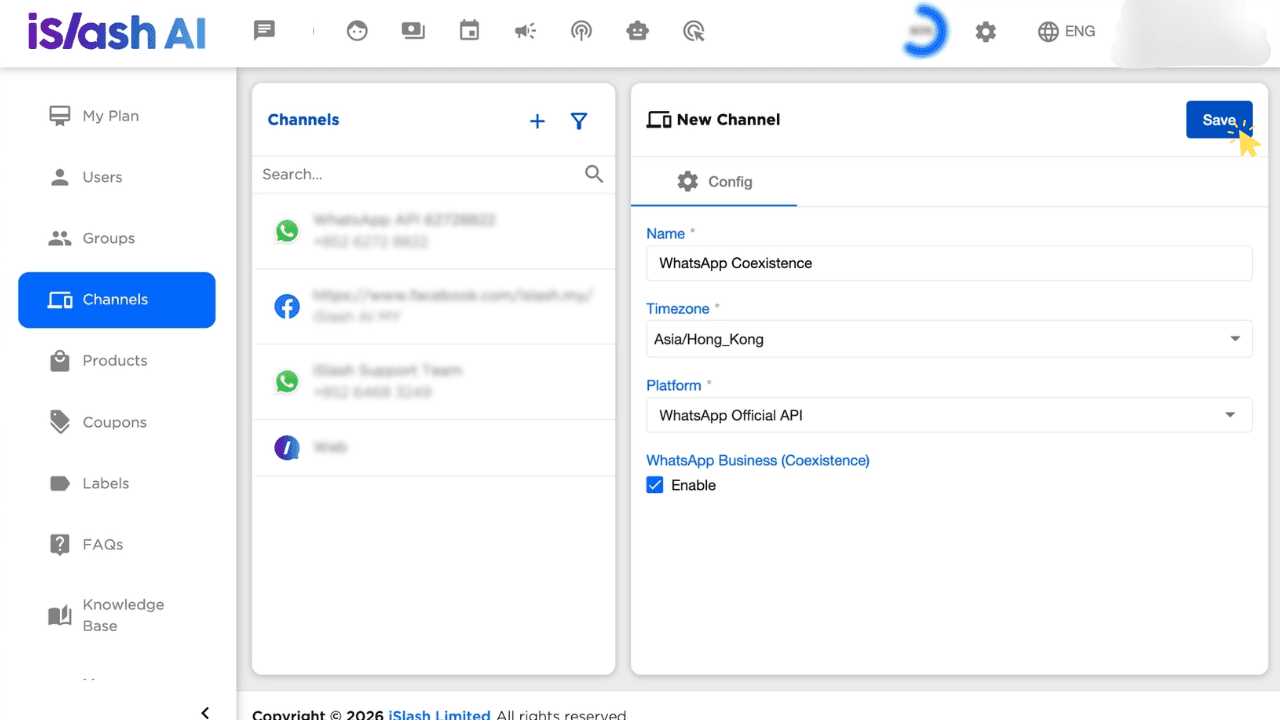
Click "Save". The channel is created.
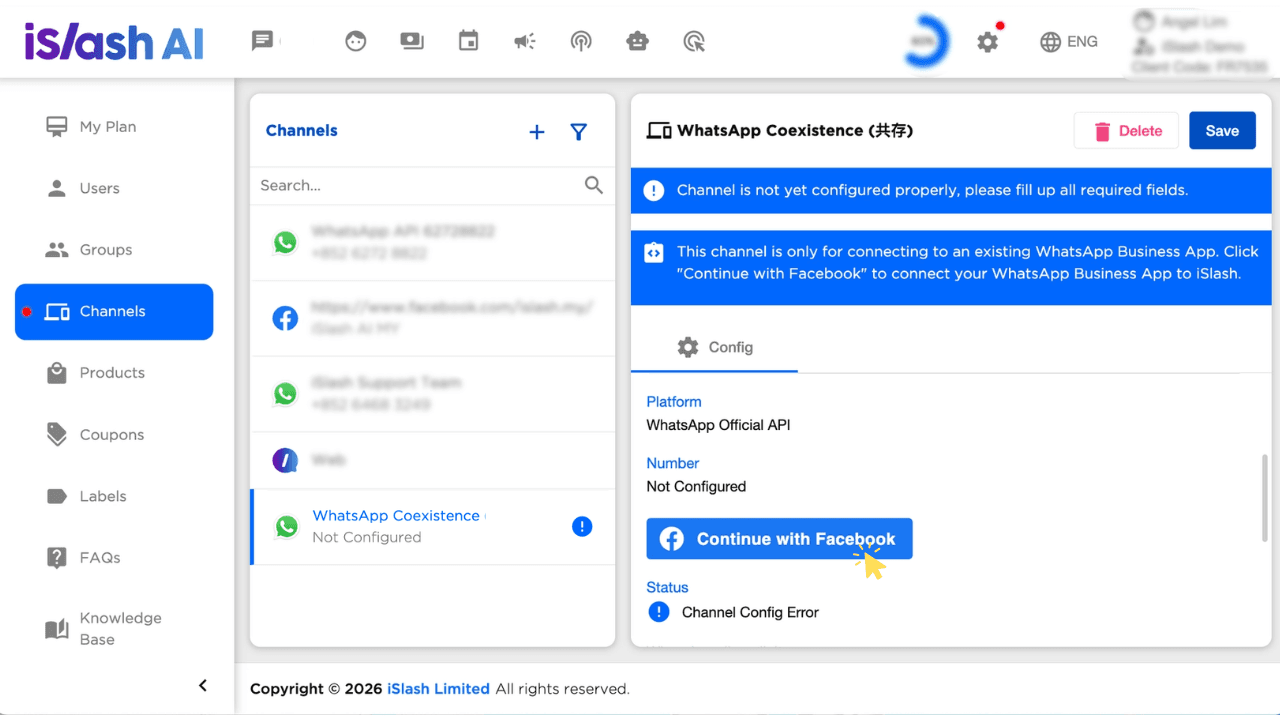
Step 3: Connect with Facebook
On the channel settings page, click "Continue with Facebook".
Step 4: Choose how synced contacts' chats are created
A "Login Facebook" window pops up, asking how to handle contacts synced from the WhatsApp Business App:
Create chats for synced contacts: a chat is created for every synced contact, even if no messages are imported.
Don't create chats for synced contacts if there is no chat history: only synced contacts that have chat history will get a chat created.
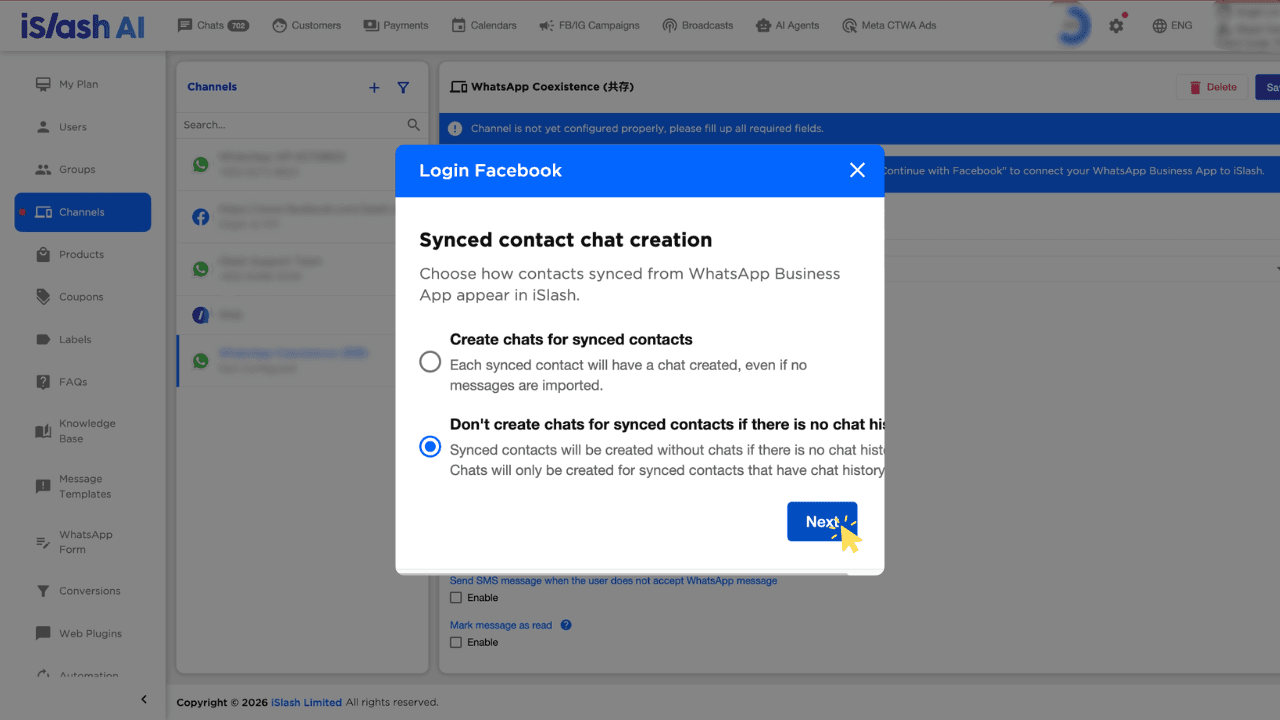
Choose the option that suits you, then click "Next".
Step 5: Connect your WhatsApp Business account through Facebook
A window from Meta pops up next, walking you through the following screens in order:
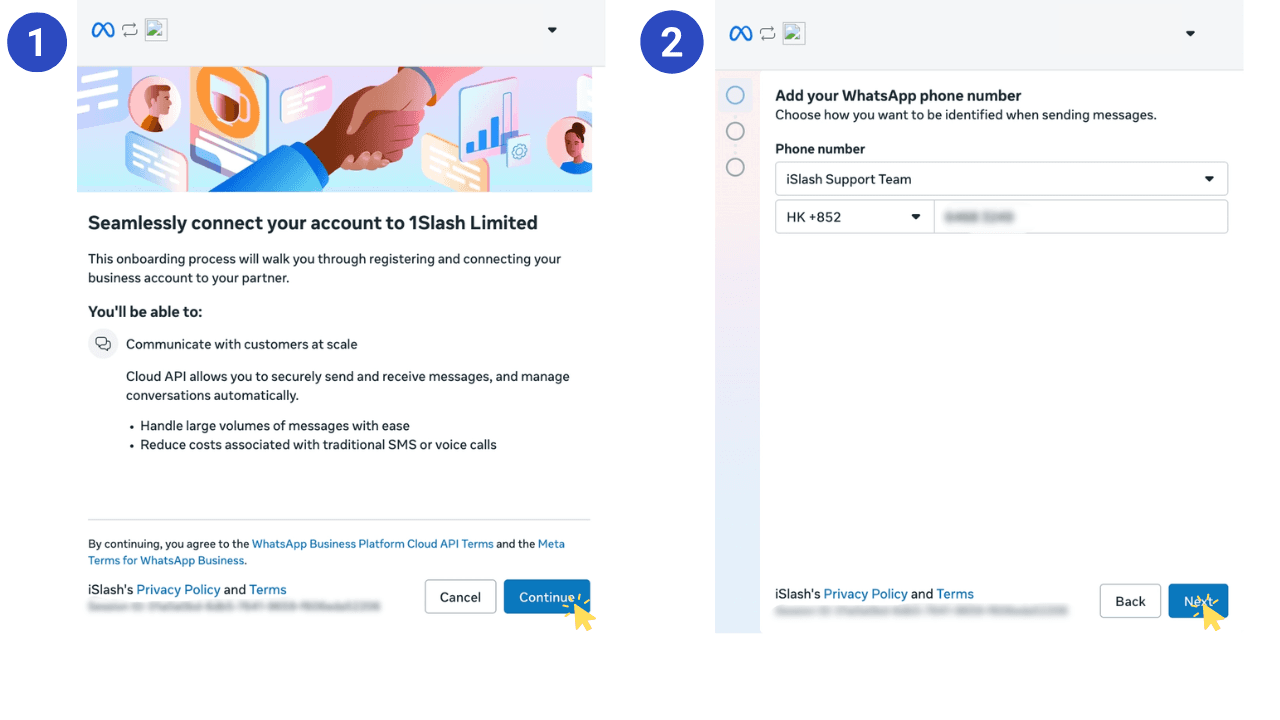
An introduction screen explaining the account connection — click "Continue".
Choose how to identify your number from the dropdown, which only shows:
Enter a new phone number
Use a display name with a virtual number instead
A list of your existing WhatsApp Business Accounts (WABAs) — shown if you have Business Portfolio admin access
If you choose "Enter a new phone number", the display name for that number fills in automatically once you type it. Confirm it's correct, then click "Next".
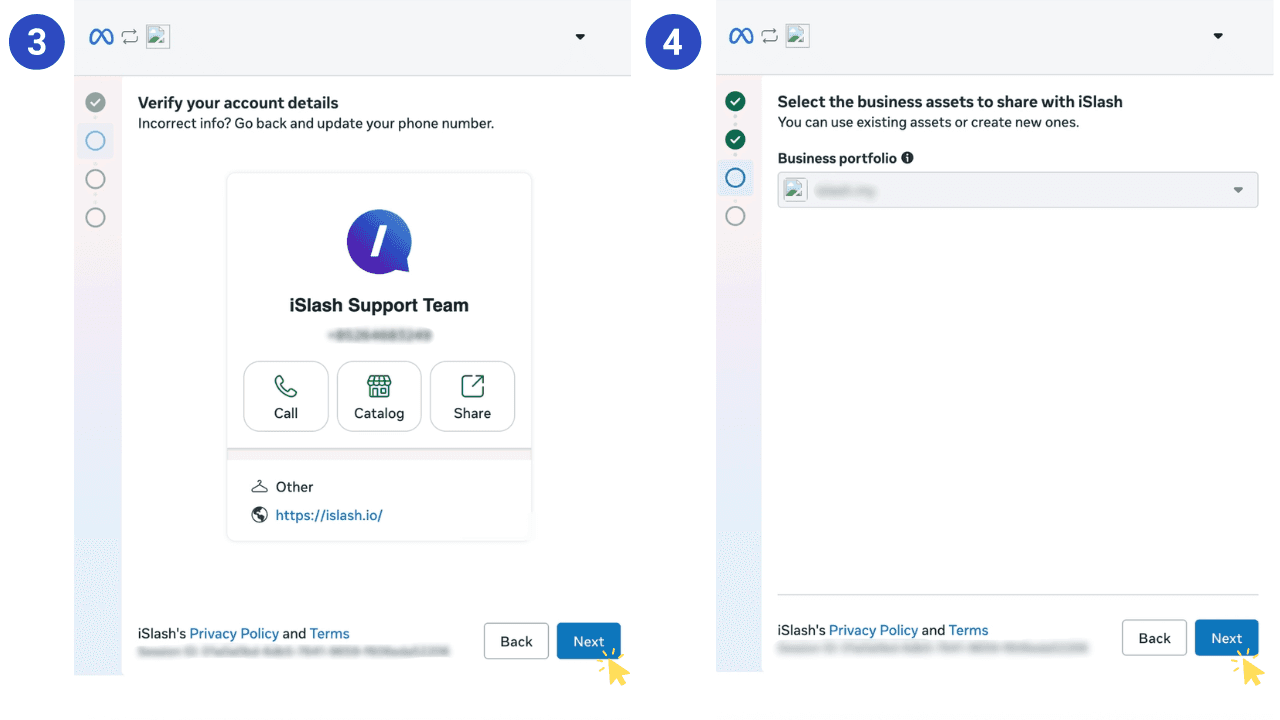
Check the WhatsApp Business account details shown, then click "Next".
Choose the business assets to share (your Business Portfolio) — you can use an existing asset or create a new one — then click "Next".
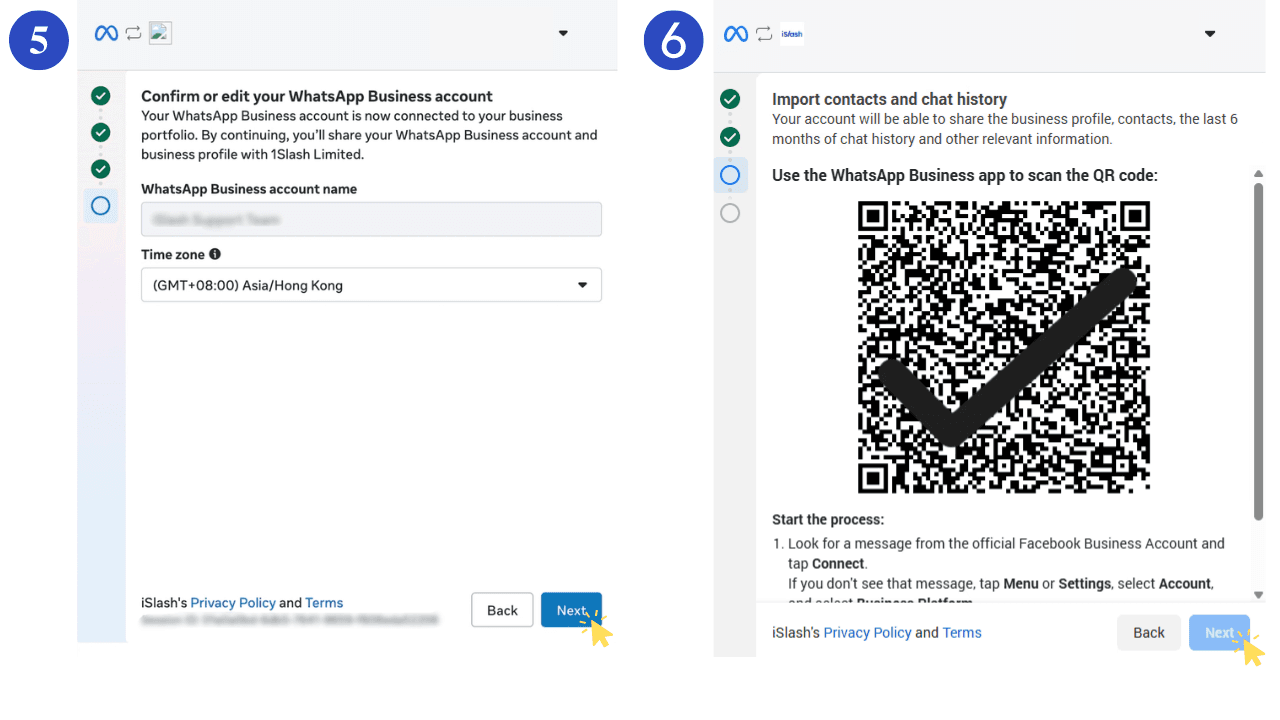
Check the WABA name and time zone. Continuing means you agree to share your WhatsApp Business account and business profile with 1Slash Limited. Click "Next" once confirmed.
A QR code appears on the same screen, ready for you to scan with the WhatsApp Business App.
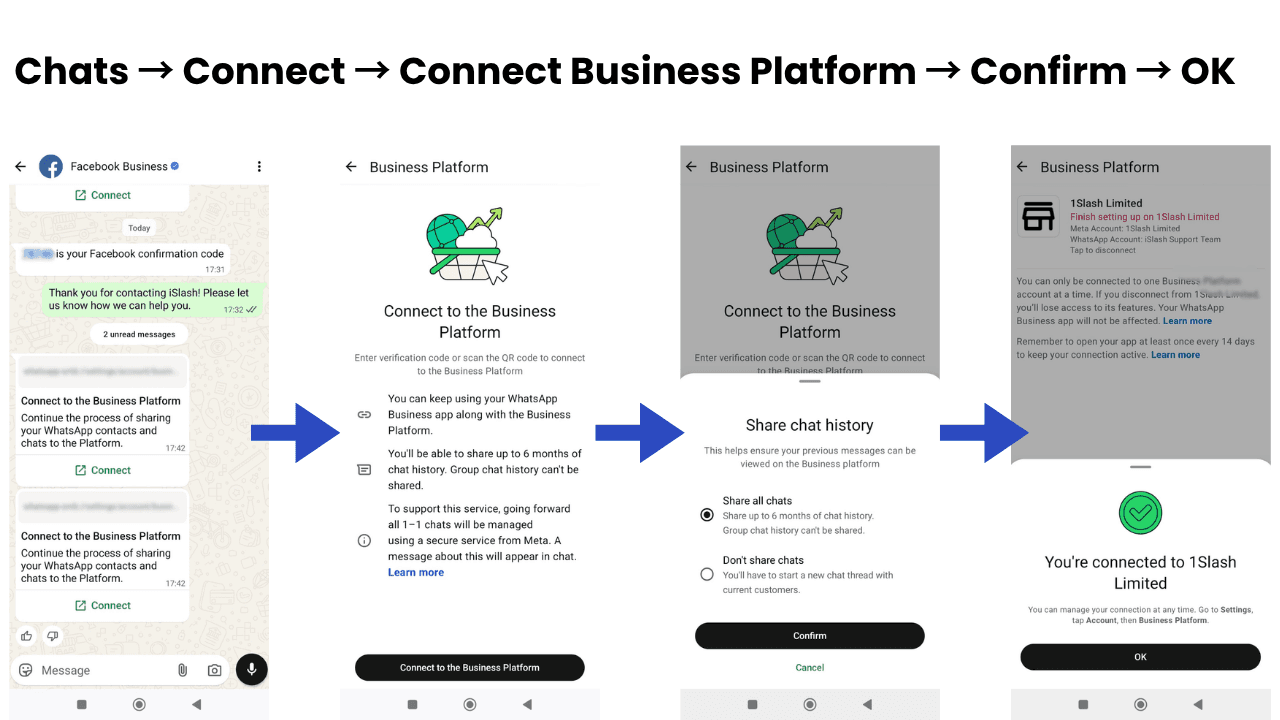
Step 6: Confirm the connection in the WhatsApp Business App
On your phone, in the WhatsApp Business App, you'll receive a message from your verified Facebook Business Account — tap "Connect", and scan the QR code shown in Step 6.
Tap "Connect to Business Platform" to continue onboarding.
Choose whether to share your chat history:
Share all chats
Don't share chats
Tap "Confirm". The app shows a "Connected" status screen ✅
Step 7: Finish Setup
Once scanned, continue in the same Meta pop-up window, click "Next" and "Confirm" in order, then click "Finish".
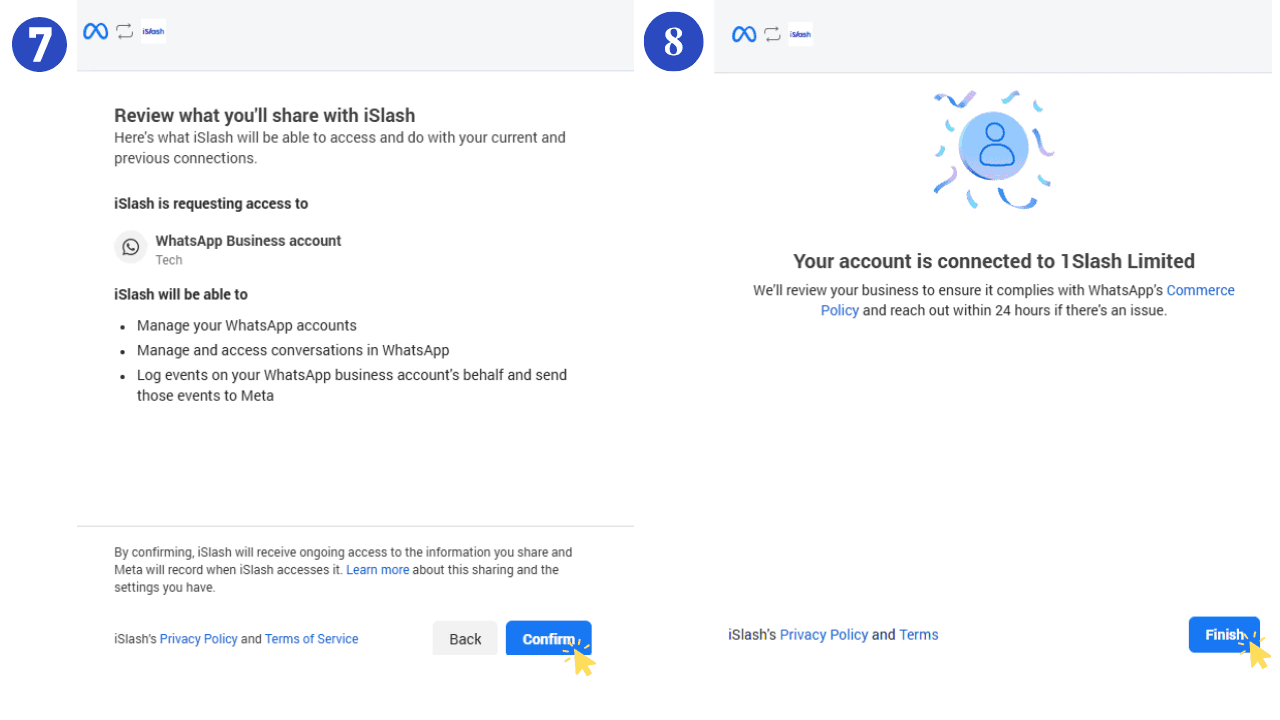
💡You've now successfully connected your WhatsApp Business number to the iSlash AI platform.
Benefits of WhatsApp Coexistence
Once connected, on top of keeping your existing number and chat history, you can also use iSlash AI to:
Automated replies: reply to customer enquiries automatically, cutting down on manual handling
Broadcasts: send a single message to a large number of customers at once
Omnichannel messaging: manage WhatsApp, Facebook and Instagram conversations from one platform
In-chat experiences: customers can fill in a form or book an appointment through WhatsApp Flows, and pay directly through WhatsApp's Payments/Orders feature — all without leaving the conversation
How Coexistence changes the WhatsApp Business App
Existing WhatsApp Business App feature | Change to the App after connecting to Coexistence | Supported on iSlash AI (Cloud API)? |
|---|---|---|
Individual (1:1) chats | No change (message edit/revoke in the App itself isn't affected) | ✅ Supported. |
Contacts | No change | ✅ Supported. |
Group chats | No change | ❌ Not supported. |
Disappearing messages | Disappearing messages are turned off for all individual (1:1) chats | ❌ Not supported |
View once messages | View once messages are disabled for all individual (1:1) chats | ❌ Not supported |
Live location messages | Live location messages are disabled for all individual (1:1) chats | ❌ Not supported |
Broadcast lists | Broadcast lists are disabled — no new lists can be created, and existing lists become read-only | ✅ Supported |
Voice and video calls | No change | ✅ Supported |
Business tools | No change | ✅ Supported |
Messaging tools | No change | ✅ Supported |
Business profile | No change | ❌ Not supported |
Insights


My number is already connected to another business platform (BSP) — can I connect it to iSlash as well?
A WhatsApp phone number can only be connected to the Cloud API through one platform (Business Solution Provider) at a time. If your number is already connected elsewhere, you'll need to disconnect it there (or in the WhatsApp Business App) before connecting it to iSlash through Coexistence.
Will I lose my existing chat history after connecting?
No. Chat history from the last 6 months syncs to the iSlash AI platform, and messages sent and received afterwards keep syncing between the App and iSlash AI.
Can I switch back to using only the WhatsApp Business App later?
Yes. In the WhatsApp Business App, go to Settings > Account > Business Platform and tap "Disconnect Account". Once disconnected, the WhatsApp Business App simply goes back to working on its own — nothing else is affected.
Can one account connect more than one WhatsApp number to iSlash?
Yes — one account can connect multiple WhatsApp Coexistence channels; the actual number depends on your account's channel quota.