Run Meta Click-To-WhatsApp Ads (CTWA)
Last update:
Traditional ads send customers to a website, and then the connection is lost. With CTWA + iSlash AI, whether a customer comes in through an ad or visits your website via Web Plugin Chat, every entry point leads to a WhatsApp conversation — no drop-offs.
The Meta CTWA Ads (Click-to-WhatsApp Ads) feature allows businesses to create and manage WhatsApp ad campaigns directly within the iSlash AI platform. This eliminates the need for multiple ad management tools and simplifies campaign execution.
Industry Use Case | Using Meta CTWA Ads Conversion Path |
|---|---|
Retail / D2C | Limited-time offer → Taps to ask about the product → Chatbot recommends relevant items → Customer places an order |
F&B | Set menu promotion → Taps to enquire → Automated reply confirms a reservation or delivery details → Booking completed |
Beauty / Wellness | Treatment offer → Taps to find out more → Customer needs collected → Appointment booked |
Real Estate | New development or listing ad → Taps to enquire → Automated flow qualifies the lead → Fill out the WhatsApp Form & viewing scheduled |
SMEs / Organisations | Services ad → Taps to make an enquiry → AI Assistant responds instantly and captures contact details → Handed off to the team |
Why CTWA works
📱 Zero friction — Customers go straight from ad to WhatsApp chat, no forms or redirects, leading to higher conversion rates
⏱️ 72-hour free service window — When a customer opens a conversation via a CTWA ad, you get a 72-hour free messaging window — longer than the standard 24 hours
🤖 Instant AI Assistant handoff — The moment someone clicks, your automated flow kicks in, catching leads at their highest intent
📊 Trackable ad performance — Integrate with Conversions API (CAPI) to measure the real business outcomes each ad delivers and optimise your spend
Prerequisites
Before creating a Meta CTWA Ad, please ensure:
Your Facebook Business Page has been integrated with iSlash AI.
A WhatsApp API channel has been successfully connected.
You have ad credits available (top-up via credit card).
How to Create a Meta CTWA Ad
Follow these steps to create and launch your Click-to-WhatsApp campaign on iSlash AI Platform:
Step 1: Create Ad Campaign
Log in to your iSlash AI Account.
Click ”Meta CTWA Ads” in the top navigation bar.
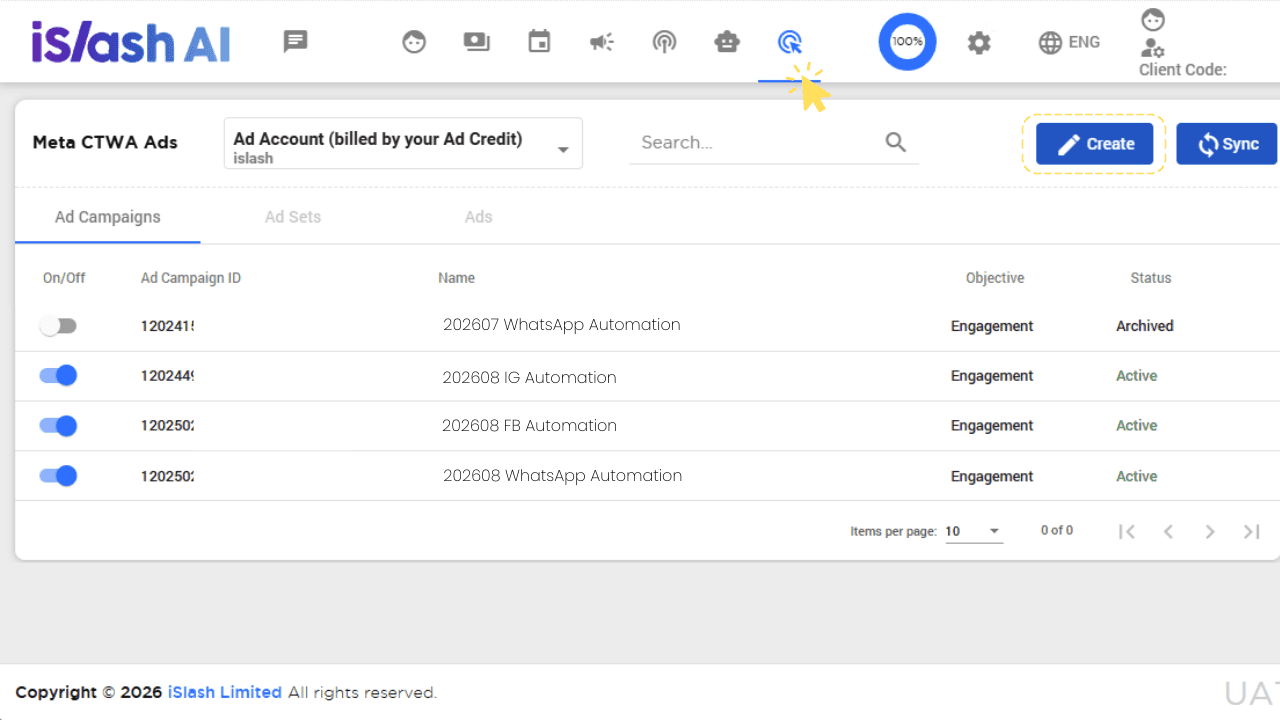
Select your ad account from the dropdown, then click ”Create”
Enter ”Create Ad Campaign” mode, select ”Create New Ad Campaign” or “Existing Ad Campaign“ from the dropdown.
Select ”Create a new advertising campaign”and enter the required information in the following fields:
Field
Description
Name
Enter a name for your campaign
Special Ad Category
If your ad does not relate to employment, housing, credit, elections, or gambling, select ”None”
Status
Active / Paused
Example: Completed Form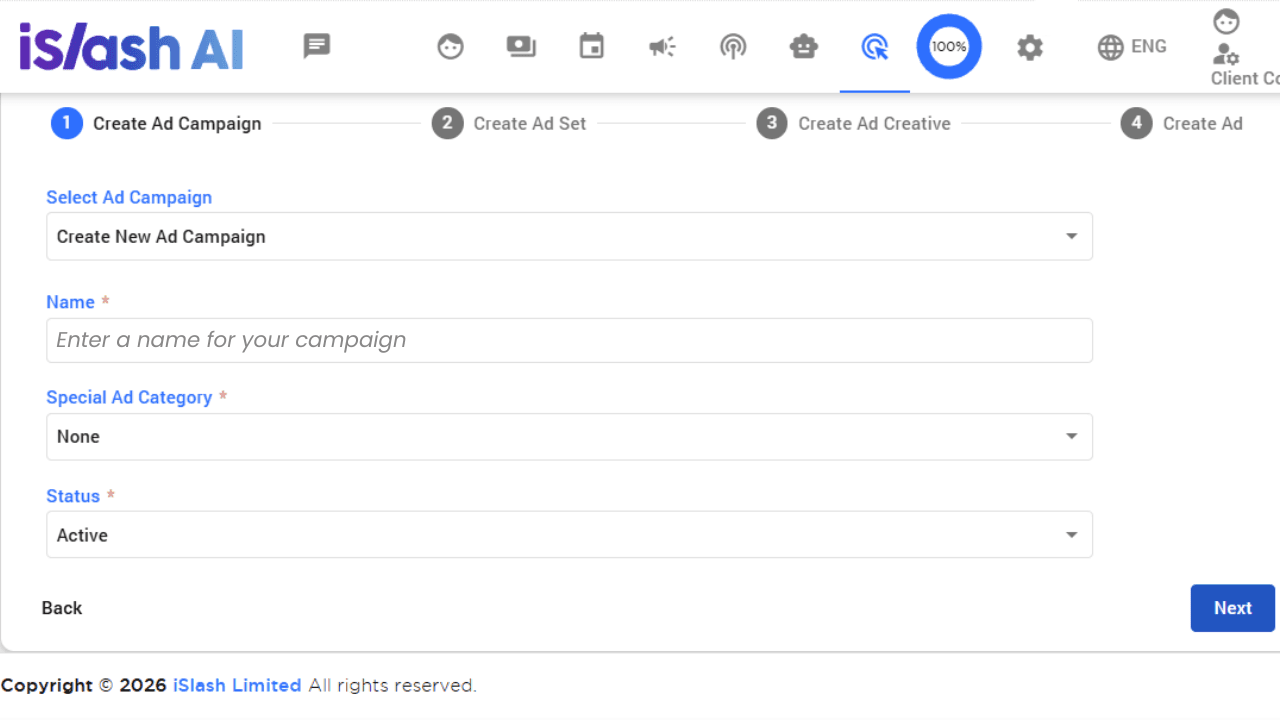
If you select an “Existing advertising campaign”, click ”Next“ to continue.
Example: Completed Form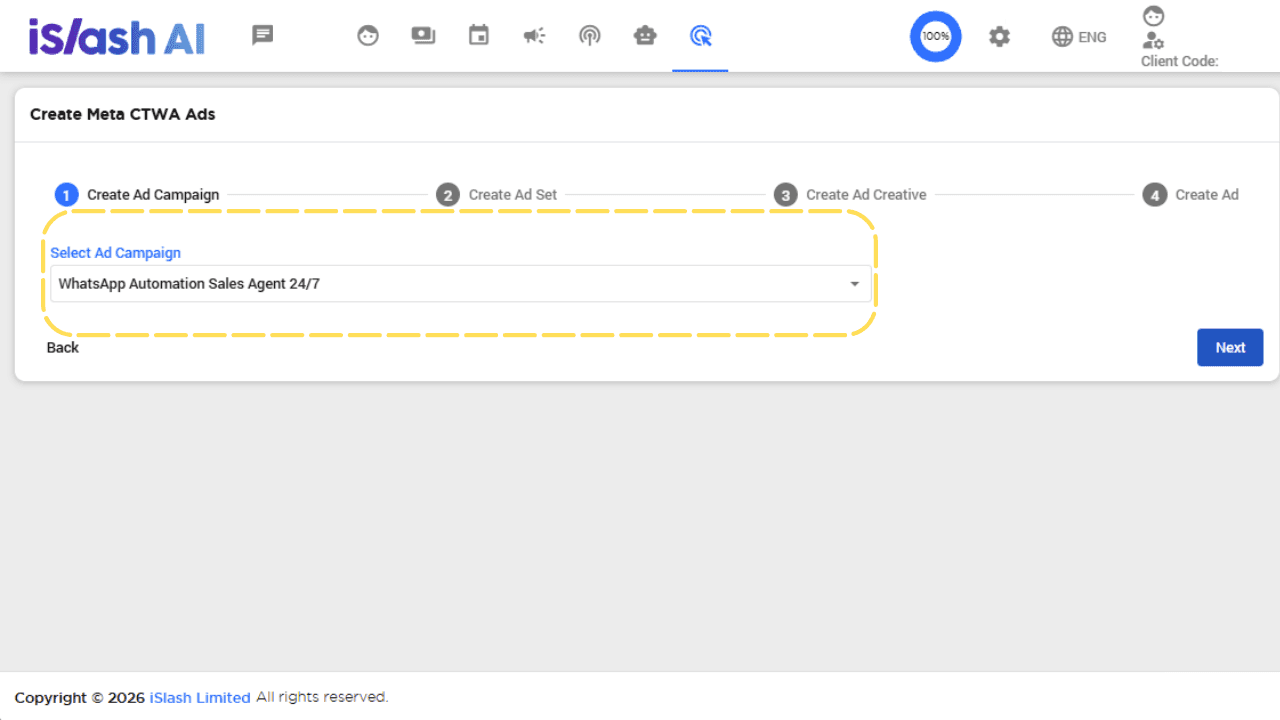
ℹ️ The default campaign objective is Engagement. Meta optimises delivery towards users most likely to start a WhatsApp conversation.
Step 2: Create Ad Set
Select ”Create New Ad Set” or “Existing Ad Set“ from the dropdown
Select ”Create a new Ad Set” and enter the required information in the following fields:
Field
Description
Name
Enter a name for your ad set
Status
Active / Paused
Facebook Page
Select the integrated page
Bid Strategy
Select one option from the list:
• Lowest Cost Without Cap (Recommended for first-time campaigns or new strategies)
• Lowest Cost With Cap (Enter a manual bid cap)
Reference on Bid CapBudget
Select one of the options and enter the amount:
• Daily
• LifetimeStart Time
Set the start date and time
End Time
Set the end date and time
Targeting
Not all targeting fields are required. At least one of the fields marked * must be filled in.Click "Add Target" and enter conditions:
• Gender
• Min/Max Age
• Region *
• City *
• Country *
• Interests
• Behaviours
Example: Completed Form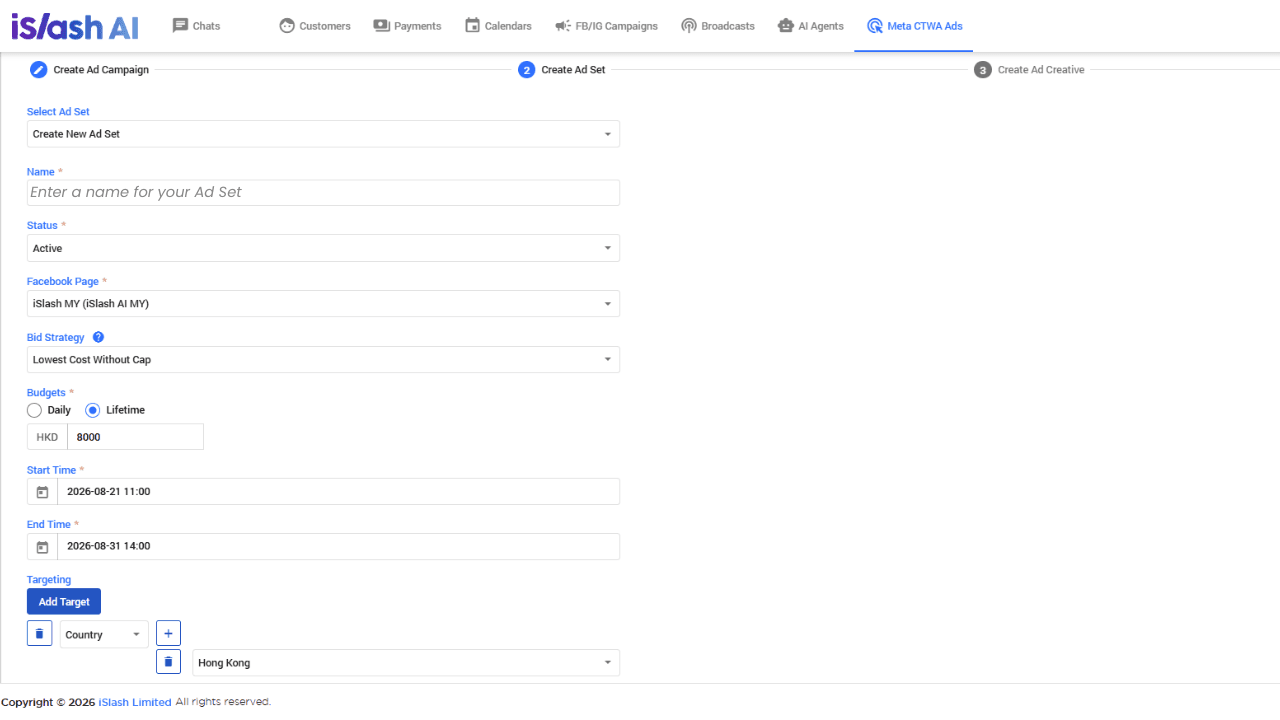
If you select ”Existing Ad Set”, click “Next” to continue.
Example: Completed Form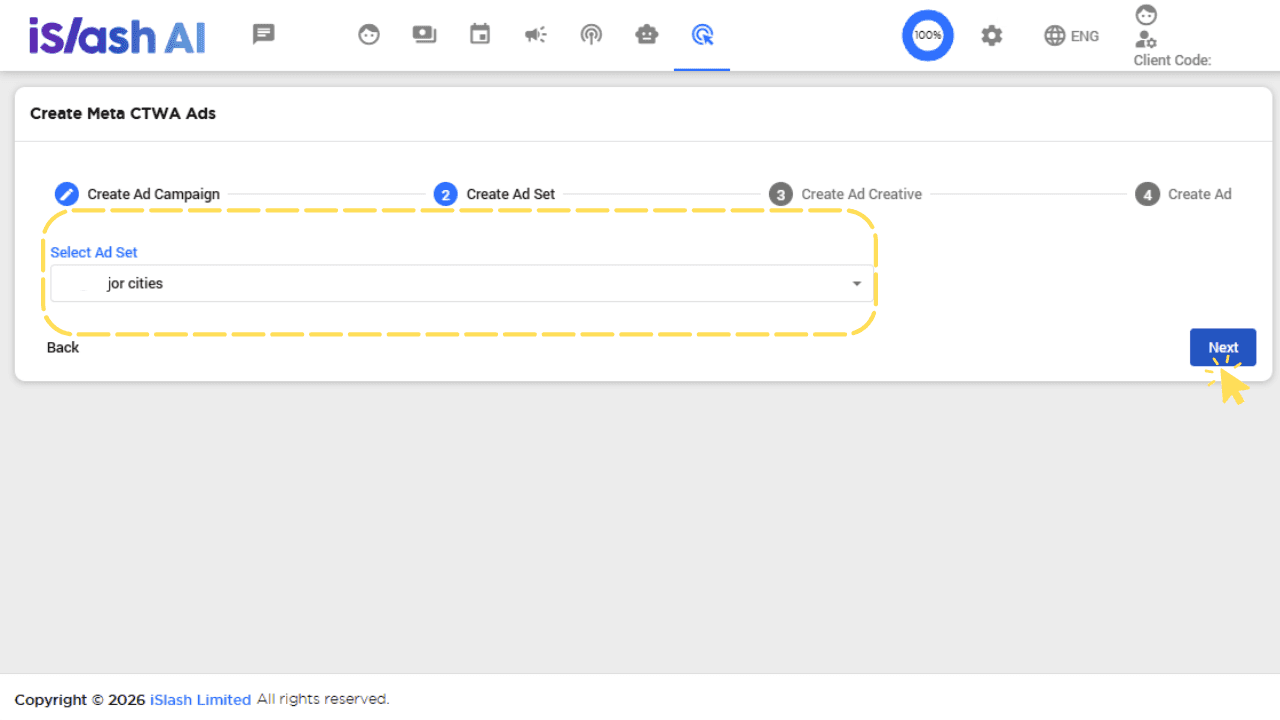
ℹ️ Once the ad set is created, the required ad budget plus a 5% service fee will be deducted from your ad account. Any remaining budget after the ad set ends will be refunded to your account.
Step 3: Create Ad Creative
From the ”Creative Source” dropdown, select one of the following methods:
The ad will run through the iSlash Ad Account.
i. Upload New Creative
Upload a brand new asset to create your ad.
Field | Description |
|---|---|
Name | Enter a name for the creative |
Ad Type | Image / Video |
Image | Upload the ad asset file |
WhatsApp Autofill Message | The keyword automatically sent when a user clicks the ad and is directed to WhatsApp. |
Body | Enter the main body text of the ad |
Example: Completed Form

ii. Use Facebook Post
Use an existing post from your Facebook Page as your ad creative. This lets your organic social content work in tandem with your paid campaigns.
Field | Description |
|---|---|
Name | Enter a name for the creative |
Facebook Posts | Click "Select Facebook Post" and choose an eligible CTWA-type post from your page |
WhatsApp Autofill Message | The keyword automatically sent when a user clicks through to WhatsApp |
Example: Completed Form

iii. Reuse Saved Creative
Reuse a previously created and saved ad creative, saving time on repeated setup.
Field | Description |
|---|---|
Select Ad Creative | Choose a saved creative from the dropdown |
Example: Completed Form
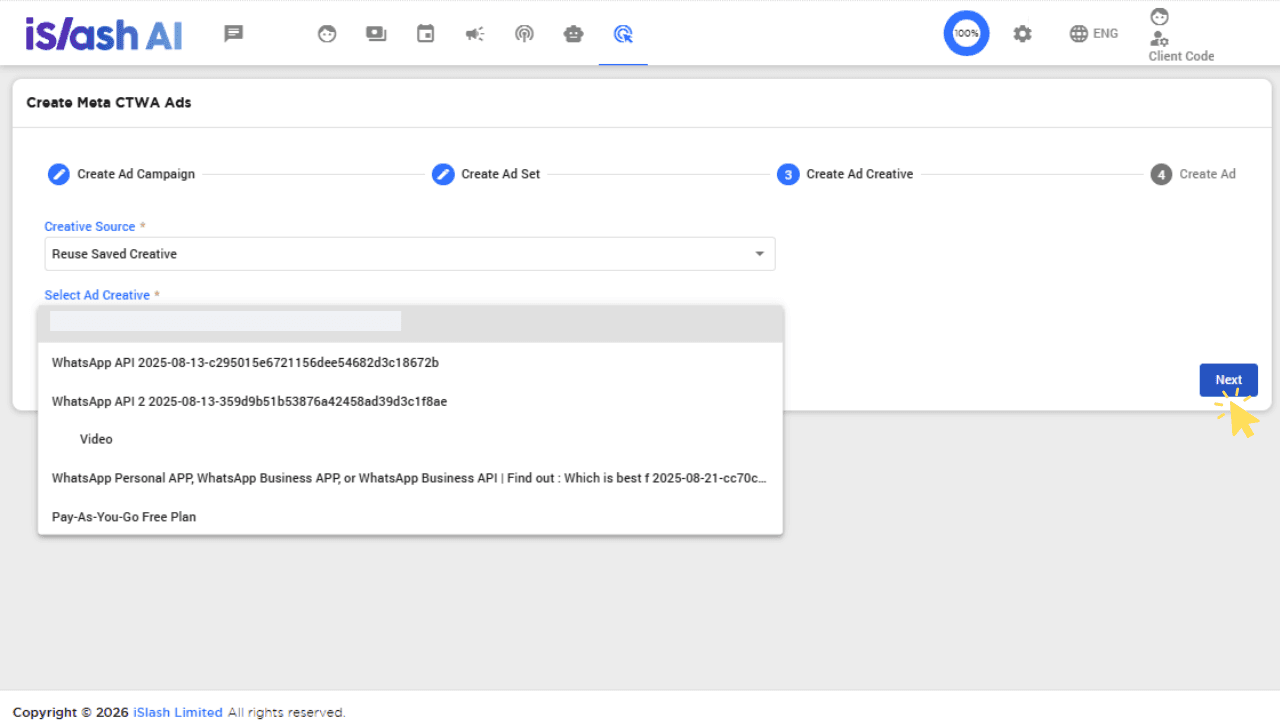
Step 4: Create Ad (Confirm Ad)
After completing the setup, click “Create Ad”. The ad will run through the iSlash Ad Account. Fill in the following fields:
Field | Description |
|---|---|
Name | Enter a name for the ad |
Status | Active / Paused |
Example: Completed Form
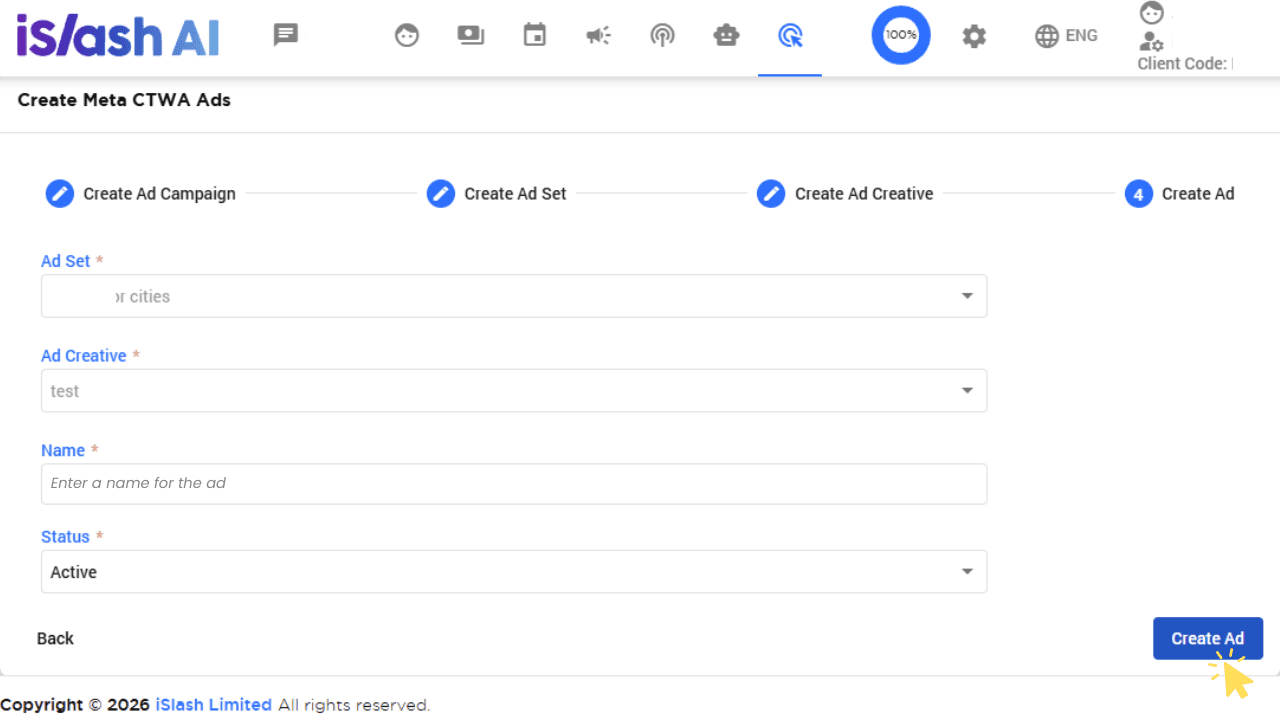
Tracking Ad Performance with Conversions API (CAPI)
By integrating CTWA with Conversions API (CAPI), you can send conversion events from WhatsApp back to Meta. For example, when a customer completes a booking, makes a payment, or submits a form. This gives Meta's ad system accurate data on which ads are driving real business outcomes.
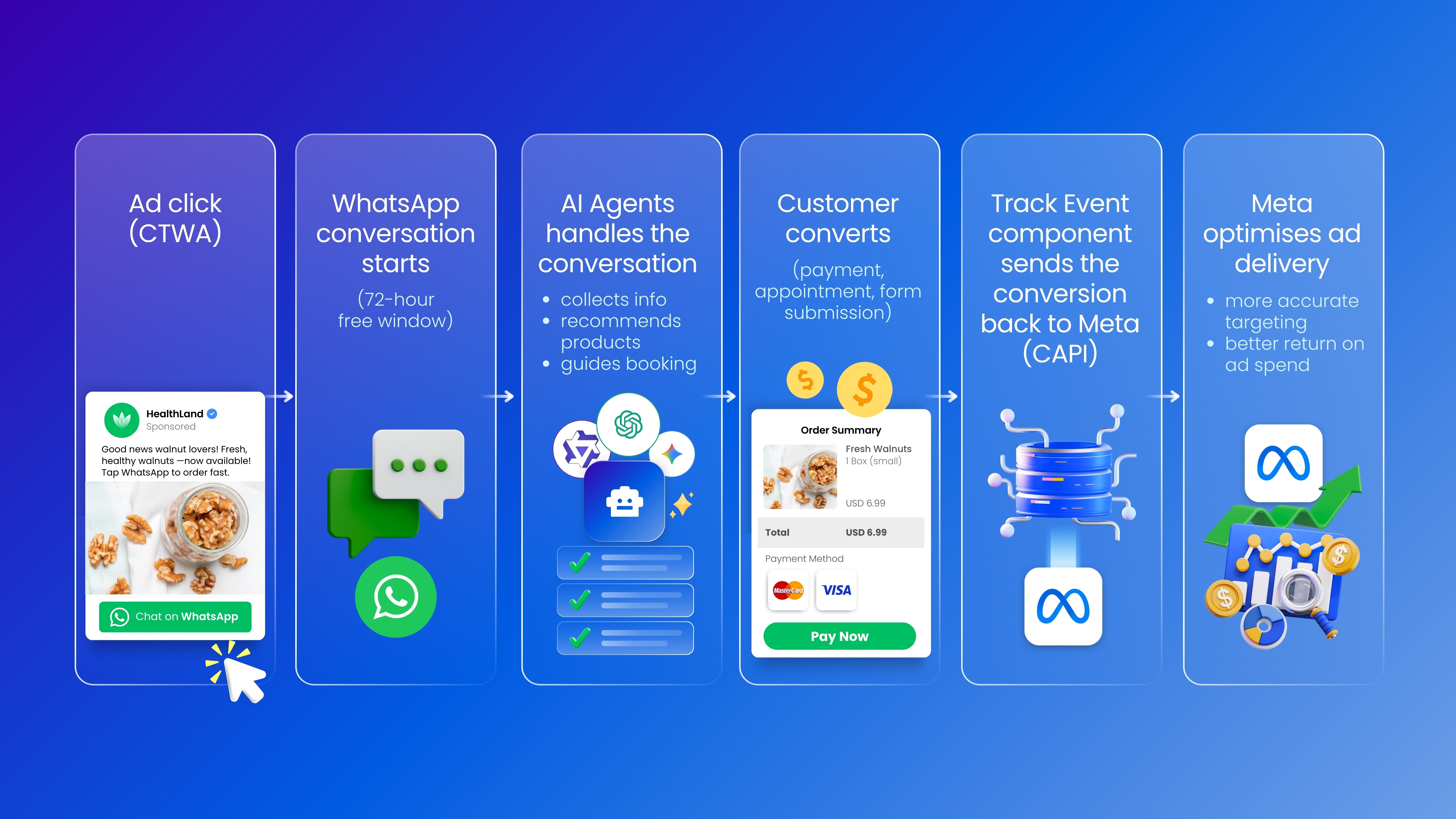
This closes the loop between your ad spend and your actual business results — so you're not just buying traffic, you're understanding exactly what each dollar delivers and continuously improving from there.
Insights


I do not see this function on the top bar, help!
Meta CTWA Ads is a new function. For existing user, the default setting is no access. To enable this function, please update group permission for Meta CTWA Ads:
Settings > Groups > Select a Group > Update "Meta CTWA Ads" from None to Read/Update.If you have experience with Facebook Ads Manager, these are information for you- There are some Default settings in Meta CTWA Ads
Campaign Objective: Engagement Objective
Ad Placements: Advantage+ Placements.
In the event that there is balance budget from the ad campaign, what will happen to the balance budget?
Campaign payments and execution are streamlined with iSlash AI. First, please click the "Sync" for the latest details to be reflected. Upon the end of an ad campaign, the balance ad budget will be refunded back to your Ad Credit at 12.00am.
Can I create Meta CTWA Ads Campaign on my business's ad account?
Yes, you can select your business's ad account at Step 1: Create Ad Campaign.